Why Is My Epson EcoTank Not Printing Yellow?
If your Epson EcoTank is not printing yellow, check the yellow tank and run a nozzle check first. An incomplete pattern points toward an ink-flow problem; a complete pattern points toward the file or print settings.
On this page (10 sections)
- Why is my Epson EcoTank not printing yellow?
- What should you check before cleaning the printhead?
- What does a nozzle check tell you?
- How do you clean a clogged yellow nozzle?
- Could an empty or incorrect ink tank be the problem?
- Can print settings make yellow disappear?
- Which EcoTank suits you if replacement makes sense?
- How can you reduce repeat yellow-ink problems?
- What if yellow still does not print after cleaning?
- What should you do if an Epson EcoTank is not printing yellow?
If your Epson EcoTank is not printing yellow, check the yellow tank and print a nozzle-check pattern first. The result tells you whether to work on ink flow or look at the document and color settings.
Don't buy another printer or start repeated cleaning cycles based on one discolored page. Yellow also contributes to mixed colors, so the problem may appear as odd greens or oranges rather than a blank yellow area.
Why is my Epson EcoTank not printing yellow?
The main causes are low ink, a blocked yellow nozzle, or a file or setting that doesn't call for color. A nozzle check helps separate these causes before you spend ink on maintenance.
Look at the yellow tank with the printer on a level surface. If it's below the minimum line, use the correct refill ink and follow our Epson EcoTank refill guide alongside your model's instructions.
Recent events offer useful clues. A problem after a refill calls for checking the bottle and setup steps; one after a long idle period makes nozzle maintenance more relevant.
If the wrong ink went into a tank, stop before adding anything else. Cleaning cycles won't correct the ink type, and Epson support needs to know what was added.
What should you check before cleaning the printhead?
Check ink levels and color settings, then use a nozzle check to confirm whether yellow is missing at the printer itself. Paper and file checks help avoid confusing a print-job problem with a blocked nozzle.
- Confirm yellow is above the minimum tank mark.
- Load plain paper as directed and clear any printer error.
- Choose a document with an obvious yellow area.
- Turn off grayscale, monochrome, or black-only mode for that job.
- Run a nozzle check from the printer's maintenance controls or Epson software.
A yellow shape in a document is useful for comparing output, but it doesn't replace the built-in nozzle pattern. The nozzle check gives you a clearer view of each ink channel.
For a newly filled printer, confirm that the initial ink-charging process finished. Don't interrupt charging or start a separate cleaning routine while setup is still underway.
What does a nozzle check tell you?
A nozzle check shows whether yellow reaches the page in a complete pattern. Compare it with the example in your printer's manual, since the layout can vary by model.
Epson EcoTank not printing yellow: read the pattern first
Missing yellow or gaps in its pattern point toward the ink supply or nozzles. A complete yellow pattern shifts attention to the app, document, and print settings.
Keep the first pattern so you can compare it with the next one after maintenance. Note whether yellow returns partly, stays absent, or changes along with other colors.
Don't judge the result from a phone photo alone. Yellow can be faint on white paper, so inspect the sheet in good light.
For the next maintenance step, use how to clean an Epson EcoTank printhead. Match the instructions to your model rather than borrowing a button sequence from another EcoTank.
How do you clean a clogged yellow nozzle?
Use normal printhead cleaning when the nozzle pattern has missing or broken yellow, following the model's ink-level requirements and cleaning limits. Then wait as directed before running another nozzle check.
Keep the printer powered and leave it alone while the cycle runs. Don't open parts, unplug it, or send another print job during maintenance.
Avoid repeated back-to-back cleanings. They consume ink and add waste ink without addressing causes such as the wrong refill ink or an unfinished setup process.
Some models offer a stronger cleaning or ink-flushing option. Use it only when your manual directs you to, with enough ink and any required waste-ink capacity available.
Don't inject fluid, force liquid through the head, or wipe internal parts based on a generic repair video. Model-specific support is the better next step when the approved cleaning sequence fails.
Could an empty or incorrect ink tank be the problem?
Yes, both the ink level and the exact bottle type matter. A tank that looks full doesn't prove it contains the right ink or that ink is reaching the nozzles.
Check the model number on the printer before choosing a bottle. Epson's EcoTank support pages provide manuals and ink guidance for individual models.
Don't refill by color alone or assume all EcoTank bottles are interchangeable. Don't add water, cleaning fluid, or another ink type to dilute what is already there.
For broader context, see Epson EcoTank printers. If your model uses that bottle family, our Epson 502 ink guide can help you check compatibility before ordering.
Can print settings make yellow disappear?
Yes, grayscale or monochrome settings can remove color from the output even when the nozzles work. These modes don't necessarily mean the printer uses no color ink.
Check the settings for the current job, including any saved preset. Match the selected paper type to the paper loaded so you're comparing output under suitable settings.
If the nozzle pattern is complete, print the same color file from another app. If that works, reset the original app's print options before changing printer maintenance settings.
Next, try the same file from another device with similar color settings. Change one thing at a time so you can identify what fixed the result.
Which EcoTank suits you if replacement makes sense?
Choose a replacement for the work you need it to do, after getting advice on the unresolved fault. None of these printers is a cleaning tool, and another ink tank printer still needs correct filling and regular care.
All 3 options below print, scan, and copy. Their most useful differences here are paper handling, speed, refill type, and how you plan to send print jobs.
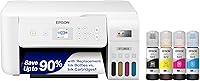
Epson EcoTank ET-2803 for basic home documents
The ET-2803 suits light, regular home printing with occasional flatbed scans or copies. Its color display gives you a way to use menus at the printer.
It supports AirPrint and Epson Smart Panel, which suits households sending homework or forms from mobile devices. It uses 522 ink bottles, so don't carry over another printer's refill supply without checking compatibility.
Skip it if automatic two-sided printing is a priority: this is a simplex model. For short jobs, that may be acceptable; frequent double-sided packets make manual page handling a recurring chore.
Epson EcoTank ET-2980 for frequent two-sided work
The ET-2980 is the stronger fit for regular document batches because it has automatic duplex printing. Its stated speeds are 15 black pages or 8 color pages per minute.
It includes 502 ink bottles and supports printing and scanning through Epson Smart Panel. Epson recommends genuine ink to support print quality and performance.
Choose it for school packets, household paperwork, or home-office documents that often need both sides. Skip it if you print so rarely that the printer will sit unused for long stretches; extra speed won't solve that care problem.
Epson EcoTank ET-2800 for short everyday jobs
The ET-2800 suits basic color documents and occasional flatbed copying. Wi-Fi lets household members send work from computers or smartphones.
Its stated speeds are 10 black pages or 5 color pages per minute, and it uses simplex printing. Choose it for short jobs where waiting and manually handling two-sided pages won't disrupt your routine.
Skip it for frequent duplex packets or time-sensitive color batches. Compare it with the ET-2803 by the mobile features you need rather than expecting either model to prevent every future clog.
How can you reduce repeat yellow-ink problems?
Use the printer regularly, check tank levels, and shut it down with its power button. Proper shutdown lets the printer complete its normal parking process.
Include some color in routine printing instead of relying only on black documents. Follow any use or maintenance advice in your manual rather than running cleaning cycles on a calendar.
Keep the printer level and follow its storage or transport instructions before moving it. For a long break, use the manual's storage guidance.
If long idle periods are common, our guide to whether EcoTank ink dries out explains the care tradeoff. A large ink supply doesn't remove the need to maintain the nozzles.
What if yellow still does not print after cleaning?
Stop after the recommended maintenance sequence and contact Epson support. Have your model number, ink type, tank level, and nozzle-check results ready.
Explain whether yellow is fully absent or partly restored, and when the issue began. Mention a refill, move, long idle period, or software change if one came just before the fault.
Keep a note of which cleaning steps you completed and any printer messages. Use the EcoTank printhead cleaning guide alongside your manual to describe those steps clearly.
What should you do if an Epson EcoTank is not printing yellow?
If your Epson EcoTank is not printing yellow, let the nozzle pattern decide your next step: a complete pattern calls for file and settings checks; missing yellow calls for model-specific ink and maintenance checks.
If replacement becomes necessary, choose the ET-2980 for frequent two-sided work, the ET-2803 for basic jobs with AirPrint, or the ET-2800 for short home print runs. Compare broader options in our Epson EcoTank printer guide.
For help identifying the printer family before seeking support, start with our EcoTank guide and keep your exact model number nearby.
Frequently asked questions
Why is my Epson EcoTank not printing yellow?
Missing yellow usually calls for checking the ink level, nozzle pattern, and color settings. A low tank or blocked nozzle can interrupt yellow output, while grayscale settings can remove color from a document.
Run the printer's nozzle check first to separate an ink-flow problem from a file or software issue.
Can I keep printing if my Epson EcoTank is missing yellow?
Don't keep printing with yellow below the tank's minimum line; follow your model's refill instructions first. If the level is sufficient, check the manual for any allowed black-only printing option.
Missing yellow changes mixed colors too, so wait for a complete nozzle pattern before printing documents that need accurate color.
How many times should I clean an Epson EcoTank printhead?
Use the cleaning limit and waiting period in your exact printer's manual rather than a fixed number for every EcoTank. Each cycle consumes ink, so compare nozzle patterns between the recommended steps.
If yellow remains absent after that sequence, stop and contact Epson instead of starting more cycles.
Does Epson EcoTank yellow ink dry out?
Ink residue can dry around nozzles during long periods without printing, but that isn't the only cause of missing yellow. Check the visible tank level and nozzle pattern before choosing a remedy.
Regular use and proper shutdown can support routine care, but neither replaces the maintenance steps in your model's manual.