How to Refill an Epson EcoTank Without a Mess
Here's how to refill an Epson EcoTank: match the ink number and color to your printer, protect the work surface, and fill according to your model's instructions. Stop at the specified level, close the caps, and complete any required refill prompts.
On this page (7 sections)
- What should you check before refilling an Epson EcoTank?
- How do you refill an Epson EcoTank step by step?
- Which EcoTank printer suits a first-time tank buyer?
- How can you prevent ink spills and stains?
- What should you do after filling the tanks?
- How often should you refill an EcoTank?
- Which supplies should you choose for your next EcoTank refill?
To refill an Epson EcoTank, match the bottle's ink number and color to your printer, then follow the model's filling instructions over a protected surface. Keep the printer level, stop as directed, and close every cap before printing.
The key to learning how to refill Epson EcoTank printers is checking compatibility before opening a bottle. A bottle can carry the Epson name and still be wrong for your printer.
You usually need replacement ink, a protected desk, and absorbent towels. Buying a new printer makes sense only if you're choosing your first tank model or replacing a machine that no longer meets your needs.
What should you check before refilling an Epson EcoTank?
Before refilling, confirm the exact printer model, required ink number, and tank level. Check the manual for the required power state and refill sequence before opening the tank cover.
Read the model from the printer's label rather than relying on its appearance. Similar-looking EcoTank printers can need different supplies.
Check the actual ink levels using your manual's method. Faint text or a missing color can have another cause, so poor output alone isn't a reason to add ink.
Prepare a stable, level work area with enough space to open the tank cover fully. Put an absorbent cover under the refill area and keep bottles away from laptops, paperwork, and the desk edge.
How do you choose ink to refill an Epson EcoTank?
Choose ink by printer model, ink family, and color, in that order. A similar bottle shape or matching color name isn't enough.
Epson 502 ink supports selected models, including the ET-2850 and ET-4850. Our guide to Epson 502 and 522 ink compatibility explains why those bottle families shouldn't be treated as interchangeable.
Epson recommends genuine ink for print quality and performance. Its 502 Black Ink Bottle has a uniquely keyed EcoFit design for compatible tank openings.
Choose this black bottle if your printer calls for 502 black and that tank needs refilling. Skip it if you need color ink or your model requires another ink family.
If compatibility remains unclear, find your model's manual through Epson's official support page. Resolve that question before breaking the bottle seal.
How do you refill an Epson EcoTank step by step?
Fill one tank at a time with its matching bottle, following your model's positioning and stopping instructions. Don't force a bottle into place or treat resistance as something to push through.
- Prepare the printer. Follow the manual's power instructions, protect the work surface, and check which tank needs ink.
- Open the correct tank. Read the color label beside the opening rather than relying on the tanks' positions.
- Prepare the bottle. Follow its opening directions and keep the cap where it won't pick up dirt or roll away.
- Position it as directed. Seat the bottle correctly and allow ink to flow using the method specified for that model.
- Watch the fill level. Follow the stopping instructions and don't try to force extra ink above the upper mark.
- Close and confirm. Remove the bottle carefully, recap it, close the tank, and complete any required refill prompts.
Don't squeeze or shake the bottle unless its instructions require it. If ink doesn't flow, check the bottle's compatibility, position, and the tank level before trying again.
Keep the printer still while a bottle is connected. Finish closing one tank before opening the next so you have fewer exposed openings and caps to manage.
Is the first ink fill different from a later refill?
Initial setup can include an ink-charging process that a routine refill doesn't require. Follow the setup guide for a new printer and don't interrupt that process.
Connecting Wi-Fi and adding ink are separate tasks. Complete the required ink setup before sending a large print job, and don't assume a refill calls for repeating the whole installation.
Which EcoTank printer suits a first-time tank buyer?
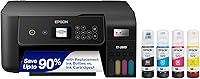
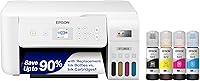
The ET-2803 and ET-2800 suit households that need printing, flatbed scanning, and copying. Neither is a refill supply, so skip a printer purchase if your current machine only needs ink.
The white ET-2803 supports AirPrint and the Epson Smart Panel app. It comes with 522 black, cyan, magenta, and yellow bottles, which gives a new buyer a clear ink-family reference.
Choose the ET-2803 if those mobile printing options suit your household. Skip it if automatic two-sided printing is essential, since it uses simplex printing and requires manual page handling for both sides.
The black ET-2800 also combines Wi-Fi printing with a flatbed scanner and copier. It suits homework, forms, and mixed household documents, with rated speeds of 10 black pages or 5 color pages per minute.
Choose the ET-2800 for basic home tasks; skip it if automatic duplex printing is a requirement. Its simplex design makes frequent two-sided jobs less convenient.
For a closer choice, read our ET-2800 versus ET-2803 comparison. If you're still deciding whether tanks fit your habits, start with the complete guide to ink tank printers.
How can you prevent ink spills and stains?
Handle one color at a time and keep the bottle steady over a protected surface. Set aside enough time to finish without leaving an open tank unattended.
Keep each cap with its own bottle and avoid touching the bottle outlet or tank opening. Don't use household funnels or transfer ink into another container to make a bottle fit.
After removing a bottle, recap it before putting it away. Store remaining ink according to its packaging, with the label visible so you can identify the family and color next time.
Blot small surface drips rather than rubbing them across a wider area. Follow the packaging's directions for cleanup and skin or eye contact.
Keep ink away from food, children, pets, and electrical connections. If it enters electrical parts, stop using the printer and seek Epson's guidance.
Should you buy separate colors or a color pack?
Choose supplies around the tanks that need ink, after confirming compatibility. A color pack is useful when you need several colors, but buying it doesn't mean every tank needs topping up.
The Epson 502 Color Ink Combo Pack contains cyan, magenta, and yellow bottles. Its keyed EcoFit bottles include autostop filling technology, but you still need to use them as instructed.
Choose this pack for a compatible printer when you need those colors or want matching replacements ready. Skip it if you only need black, since black isn't included.
Never pour leftover ink into a different color tank. If you add the wrong ink, stop before printing and contact Epson for model-specific advice.
What should you do after filling the tanks?
Close the caps, check for drips, and complete the printer's required refill confirmation. Don't start a cleaning cycle simply because you've added ink.
Some refill procedures include an ink-level prompt. Follow it only as directed, and don't confirm a full tank unless you've actually filled it to the specified level.
Print a small document or use the manual's nozzle-check procedure if you need to assess missing colors. A full tank and a clear nozzle pattern are different things.
If yellow remains absent, see why an Epson EcoTank may not print yellow. Adding more ink to a full tank won't address every cause.
For gaps or streaks, follow how to clean an Epson EcoTank print head. Avoid repeated cleaning cycles without checking the recommended sequence and waiting periods.
How often should you refill an EcoTank?
Refill at the level specified in your manual, rather than on a fixed monthly schedule. Photos, documents, color choices, and maintenance all affect ink use.
Check the tanks periodically and before a long print job. Don't wait for poor output if a tank has already reached its refill mark.
Epson's page-yield figures describe particular printing conditions, so they aren't a refill calendar for your household. A color-heavy project can use the tanks unevenly.
If you print rarely, read whether EcoTank ink dries out during long gaps. The Epson EcoTank guide collects other model and care topics.
Which supplies should you choose for your next EcoTank refill?
For how to refill an Epson EcoTank, the deciding factor is your current printer's required ink, followed by which tanks need attention. Choose compatible black ink for a low black tank and matching color bottles for low color tanks.
Use the Epson 502 and 522 ink guide before ordering if you're unsure which family fits. Keep your printer's model and ink number together in a note so the next refill starts with a clear match.
Frequently asked questions
How do you refill an Epson EcoTank?
Refill an Epson EcoTank with the ink number and color specified for your exact model; protect the work surface, open the correct tank, and position the bottle according to the manual. Follow its stopping instructions, close the caps, and complete any refill confirmation before printing.
Can you refill an EcoTank while it is on?
Use the power state specified in your printer's manual; there isn't one instruction to apply to every EcoTank model. Check that step before opening the tank cover; after filling, follow the model's directions for any screen prompts or ink-level confirmation, and keep ink away from electrical connections.
How do I know which ink bottle fits my EcoTank?
Match your exact printer model to the ink number in its manual, then check the bottle's color. The EcoTank name alone does not guarantee compatibility; for example, selected models such as the ET-2850 and ET-4850 accept 502 ink, while the ET-2803 comes with 522 bottles.
What should I do if I spill EcoTank ink?
Blot a small surface spill with an absorbent cloth, following the ink packaging's cleanup directions; avoid rubbing it across the desk or printer. Follow the packaging's instructions for skin or eye contact, and keep children and pets away; if ink reaches electrical parts, stop using the printer and contact Epson.