How to Clean an Epson EcoTank Print Head
For Epson EcoTank head cleaning, start with a nozzle check, then run the built-in cleaning cycle if the pattern has gaps. Follow your exact model's instructions and check the result before repeating.
On this page (8 sections)
- How do you clean an Epson EcoTank print head?
- What should you check before running head cleaning?
- How many times should you run head cleaning?
- Can you clean the print head by hand?
- What if head cleaning doesn't fix the print quality?
- Which EcoTank should you consider if replacement makes sense?
- How can you reduce avoidable cleaning and setup mistakes?
- When should you stop Epson EcoTank head cleaning?
For Epson EcoTank head cleaning, print a nozzle check first, then run the built-in cleaning cycle if the pattern has missing lines or colors. Use your exact model's instructions and check the result before repeating.
A poor photo doesn't always mean the head needs cleaning. The nozzle pattern helps you separate an ink-flow problem from paper, settings, or a poor source file.
Keep the Epson support page for your printer handy so you can find the correct manual and maintenance sequence.
How do you clean an Epson EcoTank print head?
Use the printer's built-in maintenance process after a nozzle check confirms gaps. Start through the printer controls or Epson software, whichever your model's manual describes.
- Load the paper specified for the nozzle check and confirm the printer is ready.
- Check that ink levels meet the manual's maintenance requirements and resolve any displayed errors.
- Find the nozzle-check command in the printer controls or Epson software.
- Print the pattern and look for broken lines or missing color sections.
- If the pattern has gaps, start the recommended head-cleaning cycle and let it finish.
- Print another nozzle check and compare it with the first pattern.
Keep both patterns until the problem is resolved. Comparing them shows whether gaps are shrinking, moving, or staying the same.
Don't switch off the printer, unplug it, or interrupt the cycle. Wait for the printer to finish and follow any messages it displays.
For the exact button sequence, use Epson's printer manuals and documentation. If you need help identifying the range, our Epson EcoTank guide explains the product line.
What should you check before running head cleaning?
Check ink levels, paper settings, and the source file first. Cleaning is useful for an incomplete nozzle pattern, but it won't repair a blurry image or correct the wrong paper setting.
Check the visible tank levels as directed in your manual. Don't assume there's enough usable ink for maintenance just because some remains in a tank.
If you recently refilled, confirm the bottle matches your printer and the correct tank. Our guide to how to refill an Epson EcoTank covers bottle selection and refill habits.
Use a nozzle check to judge ink flow, rather than a photo with pale colors. A photo may contain little yellow or cyan, making it a poor guide to which channel has a problem.
If the pattern is complete, check the selected paper type, print quality, and color settings. Make sure a grayscale setting isn't responsible for a document that should print in color.
If only yellow is missing, follow the focused checks for an Epson EcoTank not printing yellow before repeating general maintenance.
Does Epson EcoTank head cleaning use ink?
Yes, each cleaning cycle uses ink, so inspect the result before starting another. A large tank doesn't make repeated cleaning free of waste.
Cleaning also sends ink into the printer's waste-ink system. Follow any maintenance warnings, and see what the Epson EcoTank maintenance box is for help understanding those messages.
How many times should you run head cleaning?
Stop at the limit in your model's manual, even if gaps remain. There isn't one safe cycle count or waiting period that applies to every EcoTank.
After each permitted cycle, compare a fresh nozzle pattern with the earlier one. If it becomes complete, stop cleaning and try your document again.
If gaps persist, follow the manual's next step, including any rest period. Don't shorten that wait by running extra cycles while you decide what to do.
Some models offer a deeper cleaning routine, but it isn't a shortcut for every print defect. Use it only when the manual directs you to, after checking its ink requirements and other conditions.
If the recommended sequence produces no progress, record the model, affected colors, and steps already completed. That gives Epson support a clearer starting point.
Can you clean the print head by hand?
Use Epson's guided maintenance before attempting any manual method. Don't pour water or cleaning solution into the ink tanks or spray fluid inside the printer.
Avoid pins, paper towels against the nozzle surface, household cleaners, and syringe flushing without model-specific service guidance. A method shown for another printer may involve different parts or access points.
Wiping the case or scanner glass won't clear a missing nozzle pattern. Keep ordinary surface cleaning separate from work on the ink path.
If built-in maintenance doesn't restore the pattern, ask Epson support or a qualified service provider for the next step. Get advice before buying a cleaning kit or taking the printer apart.
What if head cleaning doesn't fix the print quality?
Separate a failed nozzle check from a poor document print. Persistent gaps point toward an ink-flow problem, while a complete pattern shifts attention to settings, paper, or the source.
Note whether one color is affected or several, and when the problem began. A change after refilling, moving the printer, or a long idle period gives support useful context.
If trouble started after a refill, compare your steps with our EcoTank refill guide. Don't top up a tank with a different ink to try to fix the color.
For a single missing channel, use our guide to missing yellow ink. If the printer sat unused, read whether EcoTank ink dries out before deciding how it fits your printing habits.
Ask about service options before replacing an otherwise suitable printer. Replacement makes more sense when repair isn't worthwhile or your document needs have also changed.
Which EcoTank should you consider if replacement makes sense?
Choose by your everyday printing and scanning needs, rather than an assumed cleaning advantage. These 3 models serve different households, and none should be bought as a cure for clogs.
All 3 use refillable tanks and support wireless printing. For a wider comparison after troubleshooting, see our best Epson EcoTank printers.
Epson EcoTank ET-2980: for frequent two-sided documents
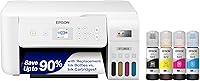
Choose the ET-2980 for automatic duplex printing, especially for school packets, forms, and longer documents. It prints, scans, and copies, with rated speeds of 15 black pages or 8 color pages per minute.
Automatic duplex saves you from turning and reloading each stack for the second side. That's a useful daily benefit if double-sided documents make up much of your printing.
It supports Epson Smart Panel for mobile printing and scanning, plus USB connectivity. The 100-sheet capacity suits home batches, though larger jobs may need more paper loaded partway through.
Skip it if your main need is feeding stacks of originals through a scanner. The ET-4800's automatic document feeder is the more relevant feature for that task.
Epson says the ET-2980's permanent printhead is designed to last the printer's life. That doesn't remove the need to check print quality and follow its maintenance instructions.
Epson EcoTank ET-2800: for basic household documents
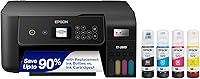
Choose the ET-2800 for straightforward home printing, copying, and flatbed scanning. It suits homework, forms, and occasional photos when you can wait for longer jobs.
Its rated speeds are 10 black pages or 5 color pages per minute. Wi-Fi lets household devices share it, and USB provides another connection option.
The flatbed is useful for a single sheet, photo, or book page. If you regularly scan a pile of separate sheets, placing each one on the glass becomes a repeated chore.
Skip this model if automatic two-sided printing is a priority. It's a simplex printer, so choose the ET-2980 if you want the printer to handle both sides.
For a closer look at that tradeoff, read our Epson EcoTank ET-2800 review.
Epson EcoTank ET-4800: for paperwork and fax needs
Choose the ET-4800 if an automatic document feeder or fax capability will save you work. Its feeder helps with stacks of originals, while the flatbed handles individual items.
It also offers Ethernet and USB alongside wireless printing. Ethernet is useful when you want a wired network connection at a fixed desk.
The ET-4800 has manual duplex printing. Its document feeder handles originals for scanning or copying; it doesn't mean printed pages turn over automatically.
Skip it if you mostly print double-sided documents and rarely scan stacks or send faxes. The ET-2980 better matches that printing pattern, while the ET-2800 covers simpler household work.
Before setup, leave room to load originals and reach the paper path. A printer that fits on a shelf can still be awkward to refill or clear when access is tight.
How can you reduce avoidable cleaning and setup mistakes?
Follow the model's setup sequence and use the correct ink. Don't interrupt initial ink charging or mistake that required setup process for an optional cleaning cycle.
Bottle compatibility varies across EcoTank models. The ET-2980 includes 502 ink, while the ET-4800 includes 522 ink, so the EcoTank name alone isn't enough to choose a refill.
Epson recommends genuine ink for these printers and warns that damage from non-genuine ink may fall outside the limited warranty. Confirm compatibility before opening a bottle.
Use the power button for normal shutdown and let the printer finish before disconnecting power. Keep it away from direct heat, and avoid leaving it unused for long periods when practical.
For care checks, an occasional small color document can reveal a developing issue. Run a nozzle check if quality changes, rather than scheduling head cleaning when prints look normal.
When should you stop Epson EcoTank head cleaning?
Stop Epson EcoTank head cleaning when the nozzle pattern is complete or the manual's limit is reached. A complete pattern means you can return to printing; persistent gaps call for the next support step.
Keep your current printer if guided maintenance restores it and its features still fit your work. If replacement is justified, pick the ET-2980 for automatic duplex, the ET-2800 for basic household tasks, or the ET-4800 for feeder and fax needs.
Before making that decision, use our ink and printer fixes to check for a more specific explanation of the fault.
Frequently asked questions
How often should I clean my Epson EcoTank print head?
Clean the print head when a nozzle check shows missing lines or color sections, rather than on a fixed schedule; check the pattern after each cycle and follow your model's cleaning limit. If the pattern is complete, look at paper, print settings, or the source file instead.
Can I clean an Epson EcoTank print head with water?
Don't pour water into the tanks or spray it into the printer; start with Epson's built-in maintenance process for your exact model. If gaps remain after the recommended steps, ask Epson support about the next action before using fluids, syringes, or any manual cleaning method.
Why is my Epson EcoTank still printing with gaps after cleaning?
A blocked nozzle or an ink-supply issue can leave gaps after cleaning; compare a fresh nozzle check with the earlier pattern, check tank levels, and follow the model's troubleshooting sequence. If the nozzle pattern is complete but documents still look wrong, check paper settings and the original file.
Does head cleaning use ink on an EcoTank?
Yes, head cleaning uses ink to clear the nozzles, and that ink doesn't become a printed page; run a nozzle check before cleaning and inspect another afterward. Avoid repeated cycles without checking progress, and follow any ink-level requirements, waiting periods, or waste-ink messages in your model's manual.