What Is the Epson EcoTank Maintenance Box?
An Epson EcoTank maintenance box collects waste ink from cleaning and other maintenance on models that use one. Choose a replacement by your printer's exact model and Epson part number, then follow its replacement or service instructions.
On this page (8 sections)
- What does an Epson EcoTank maintenance box do?
- How do you know the maintenance box needs replacing?
- How do you choose the right Epson EcoTank maintenance box?
- How do you replace an Epson EcoTank maintenance box?
- How can you reduce avoidable waste ink?
- Which maintenance-box mistakes should you avoid?
- Which EcoTank printers suit different home workloads?
- What should you do about your Epson EcoTank maintenance box?
An Epson EcoTank maintenance box collects waste ink from cleaning and other maintenance on models that use one. To buy the right replacement, match your exact printer model to Epson's specified part number and confirm whether you can replace it yourself.
The box is separate from the refillable ink tanks. Adding fresh ink won't clear a full-box warning, and replacing a maintenance box won't refill an empty tank.
What does an Epson EcoTank maintenance box do?
The maintenance box holds ink that the printer discards during maintenance. Absorbent material inside keeps that waste ink contained rather than sending it onto your printed pages.
Fresh ink travels from the refillable tanks to the print head. Ink used during cleaning can take a different path into the waste-ink system, depending on the printer's design.
For the basics of the fresh-ink system, see what an EcoTank printer is and how it works.
Don't assume every EcoTank has the same removable box. Some maintenance messages involve parts that need service, so the exact warning matters more than the general EcoTank name.
How do you know the maintenance box needs replacing?
A maintenance-box or waste-ink warning is your cue to check the model's instructions. Poor print quality alone doesn't mean the box is full.
Read the whole message on the printer or computer, including any part name or error code. A notice that capacity is running low calls for different action from a message that says printing must stop.
If the warning gives advance notice, use that time to confirm the correct part and replacement procedure. Don't wait until you need to print an urgent document to work out whether service is required.
Keep low ink, missing colors, and waste-ink warnings separate. Each points to a different next step, and repeated cleaning won't solve a full maintenance box.
Can you keep printing after an Epson EcoTank maintenance box warning?
Follow the permission given by the printer's message. An early warning may allow continued use, while an end-of-service-life message may stop printing or limit other functions.
Don't assume scanning, copying, and printing will all remain available. Check what your model allows, and arrange another way to print time-sensitive documents if it requires service.
How do you choose the right Epson EcoTank maintenance box?
Choose by exact model compatibility and part number, not by shape, color, or the word EcoTank. A box that looks similar can still be the wrong part.
Use this order before buying:
- Find the full model number on the printer itself.
- Open that model's manual or support instructions.
- Identify the maintenance part named for the warning you received.
- Confirm whether Epson provides a user replacement procedure.
- Match the replacement's part number and supported models to those instructions.
If the model or part number doesn't match, stop before ordering. A broad claim such as “for Epson printers” isn't enough to establish fit.
Check what comes with the replacement, including handling instructions and any bag supplied for the used box. Don't assume a reset tool, ink refill kit, or absorbent pad kit is a complete maintenance-box replacement.
Which Epson EcoTank maintenance box details matter most?
Fit and replacement access come first. Claims about extra capacity or longer life don't help if the part is incompatible or your printer requires a service procedure.
There is no useful universal replacement schedule in pages or months. Maintenance habits and the printer's design affect waste-ink use, so follow its status messages rather than a guessed calendar.
The ET-2980, ET-2800, and ET-4800 discussed below are complete printers. They are not replacement maintenance boxes, and their names alone don't tell you which maintenance parts they use.
How do you replace an Epson EcoTank maintenance box?
Replace it only through the procedure for your exact printer, including any power-state instructions. If the manual directs you to service, don't try to turn that job into a user replacement.
Prepare a clear, protected work surface and keep paper towels nearby for accidental drips. Leave room to set down the used part without placing it on documents, fabric, or an unprotected desk.
For a model with user replacement instructions:
- Read the full procedure before opening the printer.
- Unpack the correct replacement and keep its handling materials nearby.
- Follow the specified steps for opening the cover and releasing the used box.
- Handle the used box gently and keep it level.
- Install the new part in the stated direction without forcing it.
- Close the cover and complete any confirmation prompts.
Avoid touching ink-soaked areas or electrical contacts. Bag the used part as directed and follow the supplied disposal guidance and local waste rules.
If the warning remains, reread the message and check that the procedure is complete. Use Epson support for model-specific help rather than repeatedly removing the box.
How can you reduce avoidable waste ink?
Diagnose print problems before starting a cleaning cycle. Cleaning has a purpose, but running it without evidence uses ink and adds maintenance waste.
For missing lines or colors, begin with the nozzle check recommended in your manual. Compare the pattern with Epson's examples, then use the cleaning option that matches the problem.
Follow any required waiting period before another cycle. If the pattern doesn't improve after the prescribed sequence, move to the next troubleshooting step instead of repeating the same action.
Our guide to cleaning an Epson EcoTank print head explains that process. If the tanks need fresh ink, use how to refill an Epson EcoTank without a mess instead.
For a printer used only occasionally, read whether EcoTank ink dries out when you print rarely. Don't run cleaning cycles simply because the printer has been idle.
Which maintenance-box mistakes should you avoid?
Don't confuse clearing a message with removing waste ink. A counter reset alone doesn't empty a box or restore its ability to contain ink.
Avoid these other common mistakes:
- Buying from a partial model match. Similar model names don't prove that maintenance parts fit.
- Treating ink bottles as maintenance supplies. Fresh ink and waste-ink storage serve different jobs.
- Opening a used box to inspect it. That can expose wet absorbent material and cause spills.
- Forcing a cover or latch. Recheck the access instructions if a part won't move as described.
- Replacing the whole printer too soon. First establish whether the warning calls for a user-replaceable part or service.
A maintenance warning is also a reason to plan, not a reason to buy a different printer immediately. Compare replacement or service needs with the printer's condition and whether it still suits your work.
Which EcoTank printers suit different home workloads?
Choose a new printer around your daily work, after resolving whether your current one needs a maintenance part or service. These 3 models suit different printing habits, but none should be chosen on an assumed maintenance-box advantage.
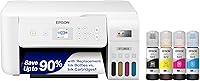
Epson EcoTank ET-2980: for regular two-sided documents
The ET-2980 suits households that print longer documents and want automatic duplex printing. Its print speeds are up to 15 pages per minute in black and 8 in color, making it the faster option among these 3 models.
Choose it for school packets, work documents, and other jobs where flipping sheets by hand adds effort. Skip it if your main need is feeding stacks of originals for scanning; the ET-4800's document feeder is the more relevant feature.
It includes 502 ink bottles, so keep the ink code separate from any maintenance-part number. During setup, use the keyed EcoFit bottles as instructed and let the initial setup finish before starting print jobs.
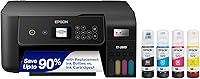
Epson EcoTank ET-2800: for basic household jobs
The ET-2800 suits short print jobs and occasional flatbed scans. It prints at up to 10 pages per minute in black and 5 in color, with single-sided printing.
Choose it for forms, homework, and individual documents when you can handle pages yourself. Skip it if you regularly produce two-sided packets or scan stacks of loose sheets.
Before setup, allow space for paper loading and output as well as the printer body. Check print preferences before a large job so paper size and orientation match your document.
Epson EcoTank ET-4800: for stacks of office paperwork
The ET-4800 suits home offices that scan or copy multiple loose pages. Its automatic document feeder, fax function, and Ethernet connection give it a clearer office role than a basic flatbed-only model.
Choose it when handling originals is the slow part of your work. Skip it if automatic two-sided printing is your priority, since duplex printing requires manual handling.
Remove staples and check the manual's paper guidance before loading the feeder. Use the flatbed for originals that aren't suitable for feeding, and don't assume an automatic feeder also means automatic two-sided scanning.
For more choices, read our comparison of Epson EcoTank printers. You can also browse our Epson EcoTank guide for related care and troubleshooting topics.
What should you do about your Epson EcoTank maintenance box?
Match the warning to the model before spending money. Buy an Epson EcoTank maintenance box only after confirming the part number and user replacement procedure; arrange service if that is what the manual requires.
If you also need a new printer, choose the ET-2980 for two-sided documents, the ET-2800 for basic household jobs, or the ET-4800 for feeding office paperwork. For help deciding whether the tank system fits your workload, read our complete guide to ink tank printers for home.
Frequently asked questions
What does an Epson EcoTank maintenance box do?
An Epson EcoTank maintenance box collects waste ink from cleaning and other maintenance on models that use one; it is separate from the tanks that hold fresh printing ink. When the printer reports that the box needs attention, follow the instructions for your exact model.
Can I empty and reuse an EcoTank maintenance box?
Use the replacement or service procedure Epson specifies rather than emptying the box yourself; used maintenance parts contain waste ink, and opening them can cause spills. Resetting a warning does not remove that ink or restore absorbent material, so it is not a substitute for the required maintenance.
Does every Epson EcoTank use the same maintenance box?
No, EcoTank maintenance parts are not universal; match your full printer model to the part number in its manual or Epson support instructions before ordering. Also confirm whether replacement is a user task or a service job, since a similar printer name does not guarantee compatibility.
Does print head cleaning fill the maintenance box?
Print head cleaning uses ink and can send waste ink to the maintenance box on models with one. Start with a nozzle check when troubleshooting missing colors or gaps; follow the recommended cleaning sequence and waiting periods rather than repeating cycles after each print without checking the result.