Ink Tank Printers for Home: The Complete Guide
An ink tank printer suits households that print regularly, especially in color, and want bottle refills. Choose by paper handling and device support first, then compare ink yields against your monthly pages.
On this page (11 sections)
- How does an ink tank printer work?
- Is an ink tank printer a good fit for your home?
- What should you compare before buying an ink tank printer?
- Which ink tank printer options suit common home needs?
- What are the trade-offs of ink tank printers?
- How should you set up an ink tank printer?
- How do you care for an ink tank printer?
- Which common buying and printing mistakes should you avoid?
- How do you choose the right ink tank printer?
- Frequently asked questions about ink tank printers
- Choose an ink tank printer around your weekly jobs
An ink tank printer is a good fit for a home that prints regularly and wants refillable bottles instead of cartridges. Choose one for your actual jobs, especially color schoolwork and documents, rather than buying on the promise of years of included ink.
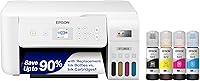
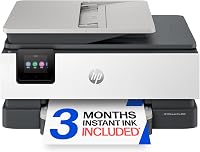
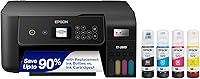
The Epson EcoTank ET-2803 suits an AirPrint-focused household, while the Canon MegaTank G3270 deserves a look for regular document batches. The Epson ET-2800 covers basic wireless all-in-one use, and the HP Smart Tank 5003 adds borderless printing and driver-supported manual duplex.
For a shorter list of options, see our best ink tank printers.
How does an ink tank printer work?
An ink tank printer feeds ink from refillable reservoirs to an inkjet print head. When a tank runs low, you add compatible ink from a bottle rather than swapping a cartridge.
Most color home models use black, cyan, magenta and yellow ink. The printer combines those colors on the page, with paper choice and print settings affecting the result.
The tank changes how ink is stored and replenished. It does not automatically make a printer faster, improve its scanner or add two-sided printing.
Bottle systems also differ between models, including printers from the same brand. Match the bottle number to your exact printer rather than choosing ink by color or brand alone.
A large supply of ink is useful when you use it. It offers less value if the printer sits idle while your occasional documents go to a school, office or print shop.
If you want a closer look at Epson's system, read what an EcoTank printer is and how it works.
Is an ink tank printer a good fit for your home?
An ink tank printer makes the most sense when printing is part of your regular routine. It is a weaker match when you need only a few pages during long stretches of inactivity.
Households with schoolwork and color documents
A tank printer suits worksheets, reading packets, charts and craft pages that come up throughout the month. Color use matters because a household printing these jobs can make use of all four ink tanks.
Count the pages your family actually prints, including repeat copies. A 12-page worksheet packet printed for 2 children uses 24 pages of output, even though it starts as one file.
Home offices with small, regular jobs
A home office can benefit from bottle refills when it produces forms, correspondence and color handouts each week. Check how those documents move through the printer, not just how much ink is included.
A weekly stack of signed forms may make a document feeder more useful than a higher ink yield. Frequent reports may make automatic duplex the feature that saves the most effort.
Homes that mainly print black text
A color tank printer can handle black documents, but color capability should earn its place in your routine. If most jobs are text and the printer may sit unused, compare a monochrome laser option.
Our ink tank printer vs laser printer guide explains that choice for home use.
Homes with very low or uneven use
Do not buy a large ink supply simply because you might need it someday. Estimate your normal month and your busiest month, then consider how often the printer will sit idle.
For a fuller cost discussion, read whether ink tank printers are worth it.
What should you compare before buying an ink tank printer?
Compare paper handling, device support and ink needs in that order. A printer that cannot handle your daily workflow is a poor choice even if its refill system suits your page volume.
How much ink comes with an ink tank printer?
Included ink is a starting supply, while a page-yield figure describes output under defined conditions. Neither tells you exactly when your household will need another bottle.
These are the brands' stated maximum yields:
| Model | Stated ink yield | Included ink claim |
|---|---|---|
| Epson EcoTank ET-2803 | Up to 4,500 black and 7,500 color pages per replacement set | Up to 2 years, based on about 125 pages per month |
| Epson EcoTank ET-2800 | Up to 4,500 black and 7,500 color pages per ink bottle set | Up to 2 years |
| Canon MegaTank G3270 | Up to 6,000 black and 7,700 color pages per ink set | Up to 2 years |
| HP Smart Tank 5003 | Up to 6,000 color or black pages from the included supply | Up to 3 years |
Keep included and replacement yields separate when comparing these figures. Also, do not add black and color yields together and assume that total represents mixed household printing.
A page with a short paragraph uses ink differently from a full-page illustration. Photos, dense graphics, quality settings and maintenance can all affect refill timing.
For ownership costs, compare the printer, compatible replacement ink, paper and any required maintenance supplies. Divide that expected total by the number of pages you realistically expect to print over the same period.
Do you need scanning and copying?
All four models here support print, scan and copy functions. The Epson models specifically include flatbed scanners, which suit individual documents, receipts and pages from books.
A flatbed requires you to position each original. For a stack of separate sheets, an automatic document feeder can reduce repeated lifting and page changes.
“All-in-one” does not mean a printer has a feeder. If batch scanning matters, confirm feeder support and whether two-sided originals require manual handling before choosing.
Also consider the destination of your scans. A household saving occasional receipts has different needs from an office that must combine many pages into an organized digital file.
Will you print on both sides?
None of these four models offers automatic duplex printing. The Epson and Canon models are simplex, while the HP supports manual duplex through its driver.
Manual duplex means you turn and reload the paper when prompted. Driver support helps guide the process, but it does not remove the physical step.
For occasional short documents, that can be enough. For frequent long reports, automatic duplex elsewhere is worth making a firm requirement.
How will you connect?
All four support wireless printing and have a USB interface. Check your exact phone, tablet or computer and the software needed for the tasks you plan to use.
The ET-2803 explicitly supports AirPrint, voice-activated printing and Epson Smart Panel. That makes it the clearest starting point here for a household that wants AirPrint.
Phone printing support does not guarantee that every computer feature is available on a phone. Confirm access to paper size, scan options and duplex controls on your main device.
How much does speed matter at home?
Speed matters most when several people share the printer or you regularly send long documents. The stated speeds here range from 10–11 black pages per minute and 5–6 color pages per minute.
Those figures are comparison points, not promises for every file. Detailed images, quality settings and the time before the first page can change how long a job takes.
For a few pages, easy paper handling may matter more than a small speed difference. For repeated batches, consider both the output rate and how often you must intervene.
Will the printer fit where you plan to use it?
Measure working space, including room for paper, cables, the scanner lid and tank access. A printer that fits with everything closed may still be awkward on a shallow shelf.
Leave space to remove output without bending it and to reach the controls. If you scan books, check overhead clearance with the scanner lid raised.
Confirm measurements for the exact model and its open trays before choosing furniture. Do not treat “compact” as a substitute for measuring your desk.
Which ink tank printer options suit common home needs?
Choose among these four by the feature you will use most often. They share the basics, so the useful differences are device support, refill arrangements and the kinds of documents you produce.
Epson EcoTank ET-2803: choose it for an AirPrint household
The ET-2803 is the most direct fit here if AirPrint is on your must-have list. Its color display and flatbed scanner also suit a shared printer used for occasional copies and individual scans.
Consider a household where one person prints a form from a phone and another scans a signed sheet. Its supported wireless methods give that household a clear reason to choose it beyond the tank system.
The box includes Epson 522 black, cyan, magenta and yellow bottles. Save those bottle details with your printer information so refill shopping does not depend on remembering the EcoTank name alone.
Skip it if automatic duplex is essential, or if most of your scanning involves stacks that need a document feeder. Its tank capacity does not remove those workflow requirements.
It is also unnecessary to choose this model just for voice printing if nobody in your home plans to use that feature. Put more weight on the connection method you already use.
Epson EcoTank ET-2800: choose it for basic shared printing
The ET-2800 suits a household that needs wireless printing and occasional flatbed scans without making a specialized workflow the focus. Think homework, forms, simple color pages and copies of individual sheets.
Its LCD provides on-printer controls, while Wi-Fi allows use from multiple household devices. Decide whether that covers your routine before comparing small differences elsewhere in the range.
Epson recommends genuine ink for this model and warns that damage from non-genuine ink may fall outside its limited warranty. Include compatible refill availability in your buying decision, rather than choosing bottles after the tanks run low.
Skip it for frequent two-sided packets if turning and reloading paper will become a weekly annoyance. A home office that needs repeated batch scans should also establish its feeder requirements first.
For more models, our Epson EcoTank guide covers the range. If these two Epson options are your finalists, use our ET-2800 vs ET-2803 comparison to narrow the choice.
Canon MegaTank G3270: choose it for regular document batches
The G3270 deserves a close look for regular black-document printing with some color work. Canon's stated ink yield gives a document-heavy household a useful refill comparison, while wireless print, copy and scan cover everyday tasks.
Its stated speeds are 11 black pages and 6 color pages per minute. That is a modest difference within this group, so do not choose it on speed alone.
The 1.35 in square LCD suits buyers comfortable with a small on-printer display. If you expect to change settings often, consider whether you prefer doing that through software or the printer controls.
Skip it if automatic two-sided output is a requirement, or if a small display would make regular use awkward for your household. A high stated yield should not override either concern.
It is a sensible candidate for worksheets, text documents and mixed color handouts. For a closer look at its fit and limits, see our Canon MegaTank G3270 review.
HP Smart Tank 5003: choose it for borderless projects
The HP Smart Tank 5003 is the clearest option here for buyers who want explicit borderless printing support alongside ordinary documents. Check supported paper sizes and settings for the projects you plan before committing.
It also suits someone willing to handle two-sided jobs manually with driver guidance. Confirm that your computer workflow provides those controls if this feature drives your choice.
HP's refill system uses bottles that drain into the tanks without squeezing. The included supplies use HP 32XL black and HP 31 cyan, magenta and yellow bottles.
Skip it if you expect two-sided printing without intervention. Its driver-supported process still requires you to turn and reload the pages.
Borderless support is useful for suitable projects, but it does not guarantee photo quality or compatibility with every paper. Match the media to the printer and choose the correct paper setting.
Our HP Smart Tank 5003 setup guide explains the setup process.
What are the trade-offs of ink tank printers?
Tank printers exchange frequent cartridge changes for bottle refills and ongoing inkjet care. Their value depends on using the ink supply while getting the paper-handling features you need.
Refilling needs preparation
You need the correct bottles, access to the tanks and a stable surface. Check levels before an important project so a refill does not interrupt the job.
Keep bottles capped and stored according to their instructions. Do not pour ink into a different container just to make it easier to store.
For Epson refills, follow how to refill an Epson EcoTank without a mess.
Light use can weaken the value
Unused ink does not create savings by itself. A household printing rarely may take a long time to benefit from a large supply.
Idle inkjet printers can also need attention if nozzles become blocked. Read whether EcoTank ink dries out if you print rarely before buying mainly for occasional use.
Extra ink cannot replace missing functions
A higher yield cannot feed a stack of originals or turn printed sheets for you. Buy those functions when they solve a recurring task.
For frequent two-sided work or scanning, review our ink tank printer features guide before choosing from these four.
How should you set up an ink tank printer?
Set up an ink tank printer by following its model-specific sequence for unpacking, ink filling, print-head preparation and connection. Allow time to finish the full process before sending an urgent document.
Prepare the printer's permanent spot
Use a level, stable surface with enough room to open the scanner and reach the tanks. Keep paper and refill bottles nearby without blocking trays or access panels.
Remove shipping tape and packing pieces as directed. Look inside the areas shown in the setup guide rather than assuming the outside tape is all that needs removal.
Fill carefully and finish initialization
Match each bottle to the correct tank and use the filling method in the instructions. Do not force a bottle, overfill a reservoir or improvise with a funnel.
Follow any print-head installation steps in the prescribed order. After filling, let the printer complete its initial ink preparation without interrupting power or starting unrelated jobs.
The level after initialization may differ from the level just after filling because ink enters the printer's internal system. Follow the model's guidance before adding more.
Connect the devices that will actually use it
Install the recommended software or app from the manufacturer's official source. Keep the printer and device on the appropriate network during wireless setup.
Print a short document from each main device before considering setup finished. Also make a scan if scanning is part of your routine, since print access alone does not confirm scan access.
If a connection fails, check the network and setup instructions before repeatedly reinstalling software. A USB connection may suit a nearby computer, but check the cable requirements separately.
Establish your everyday settings
Load suitable plain paper, set its size correctly and choose a normal document quality setting. Save specialty paper and higher-quality modes for jobs that need them.
For manual two-sided output, start with a short document and mark the paper orientation. That helps you learn how to reload sheets before handling a longer packet.
How do you care for an ink tank printer?
Keep an ink tank printer ready by checking ink levels, using suitable paper and following its maintenance instructions. Good care starts with small checks rather than repeated cleaning cycles.
Build a routine around normal use
If the printer sits idle, follow the manufacturer's guidance on occasional use. A small document with black text and some color can help you notice missing colors before an important job.
Use the printer's power button when shutting it down and allow the shutdown process to finish. Avoid cutting power while it is printing or performing maintenance.
Check a nozzle pattern before cleaning
If output has gaps, missing colors or banding, use the printer's nozzle-check function first. Compare the pattern with the instructions to decide whether cleaning is needed.
Do not run repeated cleaning cycles without checking the result and observing any required wait. Cleaning uses ink, so more cycles are not automatically better.
If the pattern remains poor, follow the model's next recommended step. Avoid pouring cleaning fluids into tanks or taking apart the print head based on generic advice.
Protect paper and scanning surfaces
Store paper flat and away from damp conditions. Load only media the printer supports, and adjust the guides without squeezing the stack.
Keep the scanner glass clean using the method in the manual. Dust or marks on the glass can appear in scans and copies even when printed documents look normal.
Check levels before large jobs
Look at ink levels before a long document batch or color project. Do not wait for faded output to decide whether a tank needs attention.
Order the correct refill bottles while there is still time to obtain them. Keeping the model and bottle numbers together makes that easier.
Which common buying and printing mistakes should you avoid?
Avoid choosing by ink quantity alone and assuming every all-in-one handles paper the same way. Most disappointing choices begin with an overlooked daily task.
- Treating years of ink as a calendar promise: Those claims depend on usage assumptions. Plan around your pages and coverage instead.
- Confusing manual and automatic duplex: Manual support still requires reloading. Frequent reports deserve a decision about that extra step.
- Assuming scan support includes a feeder: Check how originals enter the scanner, especially if you handle multi-page forms.
- Buying bottles by brand alone: Match the exact ink code and printer model. Similar packaging does not guarantee compatibility.
- Using high quality for every document: Reserve ink-heavy settings for suitable jobs. Ordinary text usually does not need a photo-oriented mode.
- Printing before checking the preview: Confirm page range, orientation and scale. This prevents blank-looking pages, clipped tables and unnecessary copies.
- Using the wrong paper setting: Match the setting to the loaded media. Paper choice affects ink placement and the finished page.
- Moving a filled printer casually: Follow its transport instructions and keep it in the required position. Plan its location before filling when possible.
Also check a short sample before printing many copies. A single page can reveal a layout error before it becomes a wasted stack.
How do you choose the right ink tank printer?
Choose the printer that meets your non-negotiable tasks first, then compare its ink supply and refill needs. This keeps a large yield from distracting you from the feature you will use every week.
Write down your 3 most common jobs, the device that sends them and whether they need scanning or two-sided output. Include the longest normal job, not just the easiest one.
Then apply these decision rules:
- Choose the Epson EcoTank ET-2803 if explicit AirPrint support is the main reason it fits your household.
- Choose the Epson EcoTank ET-2800 for basic shared wireless printing and occasional individual scans.
- Choose the Canon MegaTank G3270 if regular document batches make its stated yield and output rates useful comparisons.
- Choose the HP Smart Tank 5003 if borderless projects matter and driver-guided manual duplex fits your computer workflow.
- Look beyond these four if automatic duplex or a confirmed document feeder is essential.
If two models still fit, compare compatible refill availability, working space and the controls your household will use. Those details can matter more than a small difference in stated speed.
For a broader brand comparison, read Epson EcoTank vs Canon MegaTank.
Frequently asked questions about ink tank printers
An ink tank printer uses bottle refills, while photo support, paper handling and ink compatibility depend on the model. These distinctions help you avoid buying accessories or supplies that do not fit your printer.
Are ink tank printers the same as inkjet printers?
Ink tank printers are inkjet printers with refillable reservoirs rather than replaceable ink cartridges. The tank describes the ink supply system, not the whole printer, so compare speed, scanning, paper handling and device support separately when deciding which model fits your household's regular jobs.
Do ink tank printers work for photos?
Color tank printers can print images, but photo suitability depends on the model, paper and settings. Confirm the sizes and borderless options you need, then assess sample output for the kind of pictures you print.
Borderless support alone does not guarantee color accuracy or long-term photo durability.
How often do ink tank printers need refilling?
Refill timing depends on page volume and ink coverage, so use visible levels and the printer's guidance rather than a fixed calendar. Text documents, illustrations and photos use different amounts of ink.
Check each tank before a large job because colors do not necessarily run low together.
Can I use third-party ink in an ink tank printer?
Choose ink compatible with your exact model and read the manufacturer's guidance before using third-party bottles. Epson recommends genuine ink for the ET-2800 and warns that damage caused by non-genuine ink may fall outside its limited warranty.
Check those terms before deciding which refills to use.
Choose an ink tank printer around your weekly jobs
Buy an ink tank printer once you can name the jobs it will handle regularly. If those jobs require automatic two-sided printing or frequent batch scanning, establish those features before comparing ink yields.
For these four options, let AirPrint point you toward the ET-2803, basic shared use toward the ET-2800, regular document batches toward the G3270, and borderless projects toward the HP 5003.
Before ordering, confirm your main device, refill bottle numbers and available working space. Then use our best ink tank printers guide to compare the options that meet your requirements.
Frequently asked questions
What is an ink tank printer?
An ink tank printer is an inkjet printer with refillable reservoirs that you fill from bottles instead of replacing cartridges. It suits regular document and color printing, but the tank system does not determine speed, scanning features or paper handling; choose those features separately, and use compatible refill bottles.
Are ink tank printers good for occasional home printing?
An ink tank printer is usually a weaker fit for very occasional printing because you may use little of its ink supply while still needing routine care. Compare total ownership costs over your expected pages, and consider a monochrome laser printer if your occasional jobs are mainly black text.
Do ink tank printers print on both sides automatically?
None of the four models in this guide offers automatic duplex printing. The Epson models and Canon use simplex printing, while the HP Smart Tank 5003 supports manual duplex through its driver; choose automatic duplex elsewhere if you want two-sided documents without turning and reloading pages yourself.
Can an ink tank printer scan and copy?
Yes, an ink tank printer can scan and copy if it is an all-in-one model, and all four printers in this guide support those functions. A flatbed suits individual sheets and book pages; for frequent stacks, confirm an automatic document feeder and whether it handles both sides.
Which ink tank printer is best for a home office?
Choose the Epson ET-2803 for its explicit AirPrint support, Canon G3270 for regular document batches, or HP 5003 for borderless projects and driver-supported manual duplex. If your office depends on automatic two-sided printing or batch scanning, make those requirements the starting point and compare models beyond these four.