Epson ET-2800 vs ET-2803: What Is the Difference? (October 2026)
For Epson EcoTank 2800 vs 2803, choose the ET-2803 for its confirmed AirPrint support or the ET-2800 for basic wireless printing in black. Both offer the same print speeds and replacement ink yields, plus scanning and copying.
On this page (12 sections)
- Epson EcoTank 2800 vs 2803: what actually changes?
- How fast are they, and what do the ink yields mean?
- Who should buy the ET-2803, and who should skip it?
- Who should buy the ET-2800, and who should skip it?
- When is the ET-2980 the better choice?
- Do the ET-2800 and ET-2803 use the same ink?
- How should you set up either printer?
- How do you get useful scans and everyday prints?
- What care prevents avoidable ink and print problems?
- Which mistakes should you avoid before ordering?
- Epson EcoTank 2800 vs 2803: which should you choose?
- Where can you confirm model support and supplies?
For Epson EcoTank 2800 vs 2803, choose the ET-2803 if you want confirmed AirPrint support, or the ET-2800 if basic wireless printing in a black finish meets your needs. Their matching print speeds and replacement ink yields give neither a clear advantage for routine documents.
Both suit households that print regularly and also need to scan or copy individual originals. Neither is the right choice if automatic two-sided printing is a must.
The ET-2980 is included below as an alternative for that need. For more detail on the black model, see our Epson EcoTank ET-2800 review.

Epson EcoTank 2800 vs 2803: what actually changes?
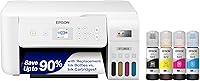
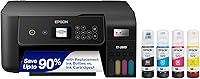
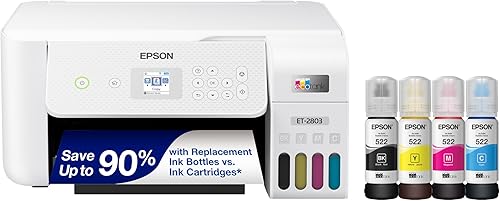
The clearest visible difference is white for the ET-2803 and black for the ET-2800. The more useful buying distinction is whether the ET-2803's confirmed mobile printing options match how your household sends documents.
The ET-2803 supports AirPrint, Epson Smart Panel, and voice-activated printing. AirPrint is a practical reason to favor it if printing from an iPhone or iPad is part of your routine.
The ET-2800 supports Wi-Fi printing from computers, laptops, and smartphones. That covers a common home setup, but don't assume every named mobile feature transfers between models simply because their model numbers are close.
Both combine color printing, flatbed scanning, and copying, with displays for controls. Neither needs to win on every feature to be the better fit for your desk.
Epson EcoTank ET-2800 vs ET-2803: which features should decide?
Let your main printing device and document habits decide before the finish. A phone-centered household has a clear reason to choose the ET-2803, while a household that prints mainly from a computer may find the ET-2800 sufficient.
If you already have an ET-2800 that meets your needs, these shared core functions give you little reason to replace it with an ET-2803. Changing models makes sense when it solves a specific problem, not just because the number is different.
How fast are they, and what do the ink yields mean?
Both models are rated at 10 black and 5 color pages per minute, with replacement ink sets yielding up to 4,500 black and 7,500 color pages. Choose neither expecting a speed or replacement-yield advantage over the other.
Rated speed helps compare printers, but it isn't a promise that every document finishes at that pace. Large images, higher quality settings, and the time needed to process a file can all affect a job.
For a short permission slip, that difference matters little. For a long color workbook needed before school, the time spent printing becomes part of the buying decision.
Page yields also vary with what you print. A page with a few lines of text uses ink differently from a full-page color image, so don't add black and color figures together as a guaranteed household total.
Epson describes both models as including up to 2 years of ink; the ET-2803's claim is based on roughly 125 pages per month. That is a usage estimate, not an expiration date or a promise that every household gets the same calendar life.
Who should buy the ET-2803, and who should skip it?
Choose the ET-2803 for a shared home printer used from phones and tablets, especially when AirPrint is a requirement. Its app support also gives households a clear mobile route for printer tasks.
A student printing assignments from different devices is a good match. So is a family that needs color activity sheets, forms, and occasional copies without managing replacement cartridges.
Voice-activated printing is an extra convenience, but it shouldn't carry the decision by itself. Think about the files you actually print and how you select them, since most document work begins with a file or app.
Skip this model if you regularly produce two-sided packets and want the printer to handle both sides. Also look beyond it if your main frustration is waiting for long jobs, because its speed matches the ET-2800.
Its white finish can help it fit a room, but leave space for use rather than choosing by appearance alone. You need access to the scanner lid, paper path, and ink tanks.
Who should buy the ET-2800, and who should skip it?
Choose the ET-2800 for routine wireless documents and occasional scanning when you don't need a particular mobile feature to make the purchase worthwhile. It covers the basic home all-in-one role in a black finish.
It suits a desk where a computer handles most print jobs and the scanner is used for a signed form, receipt, or family photo. Its refillable tanks also fit households with an ongoing need for color documents.
There is no need to choose the ET-2803 solely for the shared tank design or page-yield figures. Those features don't separate these two printers.
Skip the ET-2800 if you need a confirmed AirPrint option and don't want to resolve compatibility before choosing. The ET-2803 gives you that named feature directly.
Also reconsider either model if your printer will sit unused for long stretches. Inkjet ownership includes occasional attention to print quality, and a large ink supply doesn't remove that responsibility.
When is the ET-2980 the better choice?
Choose the ET-2980 for frequent two-sided documents or longer print jobs. It adds automatic duplex and raises rated speeds to 15 black and 8 color pages per minute.
Automatic duplex means the printer handles the second side without asking you to turn and reload the paper. That matters for school packets, reading material, and work drafts that you print often.
The ET-2800 and ET-2803 use simplex printing. Manual two-sided output requires extra handling, and a paper-orientation mistake can leave the back upside down or on the wrong sheet.
The ET-2980 includes ink for up to 6,600 black and 5,500 color pages. Keep those included-ink figures separate from replacement-set yields when comparing supplies.
Automatic duplex describes printing, so don't read it as a promise of automatic two-sided scanning. Our guide to duplex printing and automatic document feeders explains why those functions solve different jobs.
Do the ET-2800 and ET-2803 use the same ink?
The ET-2803 uses 522 bottles; confirm the ET-2800's exact bottle requirement before ordering replacements. Matching yields don't guarantee bottle compatibility.
The ET-2803 includes black, cyan, magenta, and yellow bottles. The ET-2980 uses 502 bottles, so buying an EcoTank printer doesn't mean any Epson refill bottle will fit it.
Keep a note of your printer's full model number and its approved bottle family. This is especially useful in a home or office with more than one tank printer.
Don't choose ink by bottle shape, color name, or an expected page count alone. Our Epson 502 and 522 ink compatibility guide explains what to check before buying.
Refillable tanks replace the cartridge routine with bottle refills, but they still need the right supplies. If the system is new to you, start with how an EcoTank printer works.
How should you set up either printer?
Set up either printer on a stable, accessible surface, then follow its model-specific instructions through filling, initial preparation, and connection. Give yourself enough time to finish the process without moving the printer halfway through.
Choose a place with room to lift the scanner lid and handle paper. A shelf that fits the closed printer may still make copying or refilling awkward.
Before opening ink, match each bottle to the correct tank and protect the work surface. Follow the fill instructions rather than squeezing bottles or forcing a connection that doesn't fit.
Let the printer complete its initial ink preparation. Don't interrupt it just because the printer is quiet for a moment; use its prompts and instructions to judge when it is ready.
For Wi-Fi setup, keep the sending device and printer on the same home network. A guest network can restrict communication between devices even when both have internet access.
Print a short document before sending a large job. Check that the correct printer is selected, the paper size matches, and the output looks right.
Then try a scan and a copy so you understand those controls before you need them for an urgent form. ET-2803 buyers who chose it for AirPrint should also confirm printing from their usual Apple device during setup.
How do you get useful scans and everyday prints?
Use the flatbed for individual originals, and check the preview before saving an important scan. Placement on the glass matters more than repeatedly changing settings after a crooked or cropped result.
Keep the glass clean with the method allowed in the manual, and align the original with the guides. For receipts or forms, make sure the smallest text remains readable before storing or sending the file.
A PDF is usually convenient for documents, while an image file may suit a photo. Choose the format for the person or service receiving it rather than keeping the software's default every time.
For printing, match the paper setting to the paper you loaded. Using a photo setting for a plain text draft can add unnecessary ink use and waiting.
Preview web pages and long files before sending them. Selecting only the pages you need often saves more paper and effort than changing printers.
For manual two-sided jobs, start with a short sample and mark the sheet orientation. Learn which way to reload it before committing a full packet.
What care prevents avoidable ink and print problems?
Use the printer regularly, watch ink levels, and respond to print-quality changes with the maintenance steps in its manual. Large tanks reduce refill frequency, but they don't make an inkjet maintenance-free.
Avoid leaving an inkjet idle for months and assuming it will be ready for an urgent color job. A short routine document can help you notice missing colors or broken lines before a deadline.
If output looks wrong, start with the printer's nozzle-check procedure. Use the result to decide whether cleaning is needed rather than launching repeated cleaning cycles without checking.
Cleaning uses ink, so more cleaning isn't automatically better. Follow the prescribed sequence and any waiting periods instead of repeating the same action until the tanks drop.
Refill before ink falls below the point specified in the manual, and keep bottles closed and stored as directed. Don't wait for visibly poor output as your only sign that ink needs attention.
For the filling process itself, our guide to refilling an Epson EcoTank without a mess walks through the practical precautions.
Which mistakes should you avoid before ordering?
Avoid buying by model number alone or assuming that shared core features make every function identical. Start with the task that would frustrate you most if the printer couldn't do it.
For some homes, that task is printing from an iPad. For others, it is handling the second side of a weekly school packet without stopping to reload sheets.
Don't confuse a flatbed scanner with a solution for frequent stacks of originals. Placing pages on glass is manageable for occasional paperwork, but it becomes work when scanning is a regular batch task.
Don't treat the included ink claim as a reason to ignore your printing pattern. A household that barely prints has different needs from one that produces assignments and color documents every week.
Finally, check where the printer will live before buying it. Access for paper, the lid, and refills matters throughout ownership, not just on setup day.
Epson EcoTank 2800 vs 2803: which should you choose?
Choose the ET-2803 when AirPrint is part of your daily routine, and choose the ET-2800 when basic wireless document work covers your needs. For frequent two-sided packets, move the decision to the ET-2980.
For Epson EcoTank 2800 vs 2803 shoppers, the useful final check is simple: name your main sending device, your usual document, and whether you need both sides printed automatically. Those answers give you a stronger choice than the model number or finish.
If neither matches those needs, use our Epson EcoTank guide to compare other options before settling on a printer.
Where can you confirm model support and supplies?
Use Epson's support site for model-specific setup instructions, ink requirements, and maintenance steps. Select the full model number so instructions for a nearby model don't guide your refill or connection choices.
ClipboardClub compared connectivity, paper handling, speed, and ink supplies for home use. For manuals and compatibility help, visit Epson EcoTank printer support.
Frequently asked questions
What is the difference between the Epson ET-2800 and ET-2803?
The clearest differences here are the finish and confirmed mobile options: the ET-2803 is white with AirPrint, Epson Smart Panel, and voice-activated printing; the ET-2800 is black with wireless printing. Both print, scan, and copy, with matching print speeds and replacement ink yields.
Do the ET-2800 and ET-2803 use the same ink?
The ET-2803 uses 522 bottles; confirm the ET-2800's bottle number in its manual before buying replacements; matching page yields do not prove that ink bottles are interchangeable. Match the exact printer model, bottle family, and ink color rather than choosing a bottle just because it carries the Epson name.
Is the Epson ET-2803 faster than the ET-2800?
Neither has a speed advantage: both are rated at 10 black and 5 color pages per minute; actual job time also depends on document complexity, quality settings, and connection conditions. For longer jobs, the ET-2980 offers higher rated speeds of 15 black and 8 color pages per minute.
Does the Epson ET-2803 print double-sided automatically?
The ET-2803 does not print both sides automatically, and neither does the ET-2800; manual two-sided work means turning and reloading sheets as your print software directs. Choose the ET-2980 if you regularly print double-sided school packets or work documents and want to avoid that extra handling.