Ink Tank Printer Features: Do You Need Duplex or an ADF?
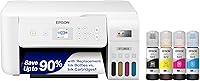
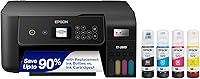
The best ink tank printer with auto duplex depends on your main task: choose Canon G3290 for touchscreen controls, Epson ET-2980 for a narrower body, or HP 7303 for its document feeder.
On this page (9 sections)
- What is the difference between auto duplex and an ADF?
- Which is the best ink tank printer with auto duplex for your routine?
- How should you compare these four printers?
- When does automatic two-sided printing save the most effort?
- When is an ADF worth choosing?
- How much should included ink influence your choice?
- How do you set up duplex printing correctly?
- How do you care for an ink tank printer?
- Which printer should you choose before placing an order?
The best ink tank printer with auto duplex is the one that matches your repeat jobs: Canon G3290 for touchscreen controls, Epson ET-2980 for a narrower body, or HP Smart Tank 7303 for batch scanning.
The HP Smart Tank 6003 suits buyers who want two-sided printing and occasional copying or scanning without making a document feeder their priority. All four models print on both sides automatically, so the deciding factors sit beyond that shared feature.
Start with what happens before and after printing. A school reading packet needs different tools from a stack of signed forms you must turn into a PDF.
What is the difference between auto duplex and an ADF?
Auto duplex handles printed output; an ADF handles original documents. Neither feature, by itself, confirms automatic two-sided scanning.
| Feature | What it does | Useful when |
|---|---|---|
| Auto duplex printing | Prints both sides of a sheet automatically | You print reports, drafts, or reading packets |
| Automatic document feeder, or ADF | Feeds loose originals for scanning or copying | You process stacks of paperwork |
| Duplex scanning | Captures both sides of an original automatically | You digitize two-sided records |
For example, printing a 20-page document on both sides can use 10 sheets. Scanning 10 two-sided originals is a separate job that needs the right scanner features.
A copy job may involve both tasks. Feeding originals automatically and producing two-sided copies are separate capabilities, so check the exact copy workflow if that's your main need.
If you want a wider view of printer types and trade-offs, start with our complete guide to ink tank printers for home. For a model shortlist, compare the best ink tank printers with your feature needs in mind.
Which is the best ink tank printer with auto duplex for your routine?
Choose by the feature you'll use each week. The four printers below share two-sided printing, but their controls, dimensions, connections, and document handling give you different reasons to buy.
Canon G3290: best ink tank printer with auto duplex for touchscreen use
The Canon MegaTank G3290 suits a household that wants on-printer controls for everyday printing, copying, and scanning. Its touchscreen gives it a clear reason to consider it beyond duplex alone.
The G3290 has rated speeds of 11 black-and-white pages per minute and 6 color pages per minute. That fits homework, household forms, and shorter work documents better than a routine built around long, urgent print runs.
Its paper capacity is up to 100 plain sheets or 20 sheets of 4 × 6-inch photo paper. A shared household should plan for paper refills rather than treating it as an unattended bulk-print station.
Canon uses pigment black ink and dye-based color inks in this model. It also supports borderless photos up to 8.5 × 11 inches, making it worth considering if documents and occasional photos share the same printer.
Buy it for accessible controls and mixed home printing. Skip it if batch scanning is a major part of your week, or if black-text speed matters more than the touchscreen.
Epson ET-2980: for a narrower desk space
The Epson EcoTank ET-2980 suits a family sharing one printer across computers and mobile devices. Its narrower body also gives it an advantage where desk width is tight.
At 14.8 inches wide, it's narrower than the other three models here. Measure the full working space, though, because paper handling and scanner access need room beyond the closed body.
Its rated speeds are 15 black-and-white pages per minute and 8 color pages per minute. Those figures help compare basic output pace, but they don't describe duplex speed or the time a complex document takes to finish.
The printer holds up to 100 sheets and accepts media up to 8.5 × 14 inches. That capacity fits routine home use, although a long run can still need attention.
Buy it for shared household printing in a narrower space. Skip it if your main reason to replace a printer is feeding stacks of originals through a scanner, since that requirement points toward the HP 7303 here.
HP Smart Tank 7303: for stacks of paperwork
The HP Smart Tank 7303 is the clearest choice in this group for buyers who regularly scan or copy loose-page stacks. Its ADF addresses a task that faster printing cannot solve.
Think of school permission forms, client paperwork, or household records that need saving together. Feeding suitable originals as a batch reduces the repeated placement needed when scanning one sheet at a time.
The 7303 also offers Ethernet, alongside USB and wireless printing. Ethernet is useful if you want a wired network connection for a printer shared by several computers.
Its rated black-and-white print speed is 15 pages per minute. The practical reason to choose it over the other models is document handling and connectivity, rather than that speed figure alone.
Buy it when batch scanning is a repeated chore. Skip it if you mainly print documents and rarely scan more than one page, because the feeder then has little work to do.
If you need automatic scanning of both sides, confirm that capability before buying. The ADF and automatic duplex printing do not guarantee it.
HP Smart Tank 6003: for printing with occasional scans
The HP Smart Tank 6003 suits a household whose main job is printing documents, with copying and scanning used as needed. It also offers borderless prints and mobile printing.
Its rated black-and-white speed is 12 pages per minute. That makes sense for ordinary home jobs when finishing a long document as quickly as possible isn't the main goal.
The body is 7.82 inches high, compared with 9.46 inches for the 7303. Both are 16.83 inches wide and 14.33 inches deep, so choosing the shorter model doesn't reduce the desk footprint.
Allow room above the printer for scanner access, rather than fitting it into a shelf based only on its closed height. A printer that fits under a shelf can still be awkward to use there.
Buy it for a print-first routine with occasional scanning. Skip it if you expect regular stacks of paperwork, or need the Ethernet connection offered by the 7303.
How should you compare these four printers?
Use the differences that change your work, rather than counting shared features. Copying, scanning, and wireless printing are available across this group.
| Model | Main reason to choose it | Main reason to move on |
|---|---|---|
| Canon G3290 | Touchscreen controls and mixed document/photo use | Long print runs are your main task |
| Epson ET-2980 | Narrower body and shared mobile use | Batch scanning drives the purchase |
| HP Smart Tank 7303 | ADF and Ethernet | You rarely handle stacks of originals |
| HP Smart Tank 6003 | Everyday printing with occasional scans | Your workflow needs a feeder or Ethernet |
A short work log helps settle a close choice. Write down a typical week's printing and scanning, including the longest job, the paper used, and whether originals have content on both sides.
For more help matching a printer to a household routine, read our guide to ink tank printers for home use. If refillable ink is the main reason you're shopping, our article on whether ink tank printers are worth it covers the broader trade-off.
When does automatic two-sided printing save the most effort?
Auto duplex earns its place with repeated multi-page documents. Reports, reading packets, drafts, and household records are good examples because you can send the whole job without returning to flip sheets.
It can reduce paper use, but it doesn't cut the document's printed page count. A 12-page file still has 12 printed sides even when it uses only 6 sheets.
Don't assume that automatic duplex makes a job faster. The printer must turn or route the sheet for its second side, and inkjet output may include a drying pause.
The rated page-per-minute figures above aren't duplex speed figures. Compare them as one clue about pace, not a promise about how quickly a two-sided packet will finish.
Photos, envelopes, labels, and heavy paper need separate attention. Use automatic duplex only with paper types and sizes the printer supports for that mode.
If you'll staple packets, check the binding direction before printing the full batch. Long-edge binding usually suits portrait documents that turn like a book; short-edge binding suits pages that flip over the top.
When is an ADF worth choosing?
An ADF is worth prioritizing when loose-page scanning happens often. It saves repeated handling, which matters more as the number of originals grows.
A household that scans one signed form each month has little reason to choose around a feeder. Someone scanning a weekly stack of records has a much stronger reason.
Original condition matters too. Books, fragile papers, small items, and photos are generally better placed on the scanner glass unless the printer's instructions allow them through the feeder.
For feeder jobs, remove staples and paper clips, straighten folded corners, and align the stack. Adjust the guides so they support the paper without squeezing it.
Check the saved file before putting originals away. Missing backs, rotated pages, or an incorrect page order are easier to fix while the stack is still beside you.
For a small office, also decide whether documents need to become one combined PDF or separate files. Confirm that your chosen scan software supports the workflow you want.
How much should included ink influence your choice?
Treat included ink as a page-yield estimate, rather than a calendar promise. Your coverage, color use, cleaning needs, and print volume affect how long it lasts.
Canon gives a yield of up to 6,000 black-and-white or 7,700 color pages from a full ink set for the G3290. Epson gives up to 6,600 black or 5,500 color pages from the ET-2980's included ink.
HP gives up to 6,000 black or 8,000 color pages from the ink included with either Smart Tank model here. Don't add the black and color figures together as a guaranteed combined total.
Brand claims about years of ink depend on assumed use. A busy household can use the supply sooner, while occasional printing creates different concerns about idle time and care.
Choose the paper handling and controls first, then compare the right replacement bottles. A large starting ink supply won't make a scanner more convenient or create a missing network connection.
For Epson shoppers, the Epson EcoTank guide offers more context. Our Epson EcoTank vs Canon MegaTank comparison helps if you're still choosing between those brands.
How do you set up duplex printing correctly?
Set up the printer fully, then check a short two-sided document before sending a large job. This catches paper, orientation, and software settings early.
- Choose a working location. Use a level surface with room for paper, cables, scanner access, and refilling.
- Follow the model's setup order. Remove shipping materials and complete ink filling and initial preparation as directed.
- Connect your main devices. Install the appropriate software and confirm that each computer or phone can find the printer.
- Select two-sided printing. Match paper size, paper type, and binding direction to your document.
- Print 2 to 4 pages. Check page order, margins, and the back-side orientation before printing the rest.
A phone app, browser, and desktop program can show different print options. If two-sided printing is missing, check that you've selected the correct printer and a supported paper setting.
Save a duplex preset for routine documents if your software allows it. Keep a separate one-sided choice for forms or other jobs that require a blank back.
HP buyers can use our HP Smart Tank setup guide for help planning the initial steps. Follow the instructions for your exact model where screens or parts differ.
How do you care for an ink tank printer?
Print regularly, use the correct ink, and respond to print defects with the printer's maintenance tools. A tank holds more ink, but it still feeds an inkjet printhead.
Avoid leaving the printer unused for long stretches when possible. A small document with black and color content can help you notice missing lines or a weak color before an important job.
Use a nozzle check when output develops gaps or missing colors. Follow the recommended cleaning sequence instead of running repeated deep-cleaning cycles, which consume ink.
Keep paper dry and flat, and don't overfill the tray. Curled or damp sheets can complicate feeding and make two-sided output harder to handle.
For refills, match each bottle to the exact model and color, and follow the filling instructions. Don't assume bottles fit because another printer comes from the same brand.
If your Epson develops gaps in text or color, our EcoTank print head cleaning guide explains the maintenance sequence. Address the cause before committing to a large document.
Which printer should you choose before placing an order?
Choose the best ink tank printer with auto duplex by identifying the task that needs the most help. Use these decision rules to make the final choice:
- Choose Canon G3290 if you want touchscreen controls and a home printer for documents plus occasional photos.
- Choose Epson ET-2980 if a narrower body and shared mobile use fit your household.
- Choose HP Smart Tank 7303 if loose-page scanning is common or you need Ethernet.
- Choose HP Smart Tank 6003 if printing leads your routine and scanning is occasional.
Before ordering, measure the working space and confirm support for your usual paper and devices. If automatic two-sided scanning is essential, make that a firm requirement rather than assuming “duplex” covers every task.
For a broader shortlist beyond these feature-focused choices, use our best ink tank printers guide.
Frequently asked questions
What does auto duplex mean on an ink tank printer?
Auto duplex means the printer prints on both sides of a sheet without you turning it over; it handles printed output, not scanning, and support can depend on paper size and type. Check the printer's paper guidance before using automatic duplex with anything other than ordinary document paper.
Do I need an ADF on an ink tank printer?
You need an ADF if you regularly scan or copy stacks of loose pages and want less manual page handling; for occasional single sheets, photos, or book pages, a flatbed is usually enough. Choose the feeder for a repeated task, rather than for a large job you might do once.
Can an ADF scan both sides automatically?
An ADF does not always scan both sides automatically; it feeds originals through the scanner, while duplex scanning is a separate capability that needs explicit confirmation. The HP Smart Tank 7303 includes an ADF, but automatic two-sided scanning is not established here, so confirm it if that task matters.
Is auto duplex worth it for home printing?
Auto duplex is worth prioritizing if you regularly print reports, reading packets, household records, or drafts on both sides; it reduces page handling and can use fewer sheets for the same document. If you mainly print photos or single-page forms, focus first on paper support, placement, and your scanning needs.