Epson EcoTank ET-4800 Review: Worth It? (October 2026)
The Epson EcoTank ET-4800 suits a home office that scans multi-page documents, needs fax and prints regularly. Choose it for document handling; choose the ET-2980 if automatic two-sided printing matters more.

On this page (11 sections)
- What does the Epson EcoTank ET-4800 include?
- Does an ADF solve the same problem as automatic duplex?
- How does the ET-4800 compare with the ET-2980?
- When is the simpler ET-2800 enough?
- Is the ET-4800 quick enough for everyday printing?
- What should you know about ET-4800 ink?
- How should you set up the ET-4800?
- How can you avoid paper and scanning mistakes?
- What care does an EcoTank need between jobs?
- Is an ink tank printer worth it for your workload?
- Should you buy the Epson EcoTank ET-4800?
The Epson EcoTank ET-4800 is a good fit for a home office that scans multi-page paperwork, needs fax and prints regularly. Its main compromise is manual two-sided printing, which adds work when you produce long reports or packets.
Buy it for the documents you handle, rather than for refillable tanks alone. The ET-2980, ET-2800 and ET-4903 serve different routines, so the right choice depends on which task takes up your time.
What does the Epson EcoTank ET-4800 include?
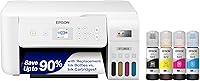
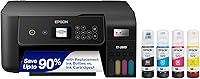
The ET-4800 combines printing, scanning, copying and faxing, with both an automatic document feeder and a flatbed scanner. A color display provides on-device controls.
Epson EcoTank ET-4800

- Print, scan, copy and fax
- Automatic document feeder
- Manual duplex
A useful fit for offices that handle multi-page originals and need fax alongside everyday color printing. Frequent two-sided print jobs require extra page handling.
Pros
- Fax capability
- Built-in automatic document feeder
- Flatbed scanner and color display
- Wired and wireless connections
Cons
- Manual duplex printing
- Modest speed for frequent large jobs
Wireless, Ethernet and USB connections give you several ways to fit it into an office. Ethernet is useful near a router, while USB suits a nearby computer and wireless avoids a direct cable to each device.
Its body measures 13.6 inches deep, 14.7 inches wide and 9.3 inches high. Leave extra room for paper access, document feeding and opening the scanner rather than measuring a shelf against the body alone.
Who should buy the Epson EcoTank ET-4800?
Choose it if your weekly work includes loose multi-page originals, occasional faxing and short print jobs. A household managing school forms, office records and applications can make use of that mix.
The feeder reduces the need to place each suitable original on the scanner glass. Keep the flatbed available for individual items, fragile originals or anything that should not pass through a feeder.
Skip it if your main task is producing long, double-sided documents. Also reconsider an inkjet if it will sit unused for long stretches between a few urgent pages.
For broader model options, see our guide to Epson EcoTank printers. Start with the features your routine needs, then compare models within that group.
Does an ADF solve the same problem as automatic duplex?
No: an ADF handles originals, while automatic duplex handles printed output. The ET-4800 has the first feature, but its two-sided printing is manual.
This distinction matters when comparing office printers. Scanning a signed packet and printing a two-sided workbook involve different paper paths and different kinds of effort.
An automatic document feeder lets you load suitable loose sheets for scanning or copying. It does not, by itself, establish that the scanner reads both sides automatically.
Manual duplex means following the print instructions and returning sheets in the correct orientation. With an unfamiliar paper path, a short sample job helps prevent a whole batch of upside-down backs.
If both features sound useful, count the jobs you actually do each week. Our guide to duplex printing and automatic document feeders explains which task each feature helps.
How does the ET-4800 compare with the ET-2980?
Choose the ET-4800 for document feeding and fax, or the ET-2980 when automatic two-sided printing is the stronger need. The ET-2980 also offers higher print speeds.
The ET-2980 prints at 15 black and 8 color pages per minute. It supports printing, scanning and copying, plus mobile printing and scanning through Epson Smart Panel.
For a student printing reading packets or a home worker producing reports, automatic duplex removes a recurring paper-handling step. That can matter more than having office functions you rarely use.
Pick the ET-2980 for a print-heavy routine with ordinary scanning needs. Skip it as your default choice if fax and feeding stacks of originals are the reasons you need a new printer.
Don't choose between these models by ink capacity alone. A printer that saves refills can still be inconvenient if its paper workflow doesn't fit your work.
When is the simpler ET-2800 enough?
The ET-2800 is enough for basic home printing, flatbed scanning and copying when you don't need the ET-4800's office workflow. Think homework, forms and individual documents rather than stacks of originals.
It has refillable tanks, Wi-Fi and USB, with a flatbed for placing originals one at a time. Its simplex printing makes it a poor match for anyone seeking automatic two-sided output.
Choose it when most scanning jobs involve one sheet and fax is not part of your routine. Skip it if you already spend too much time moving pages onto scanner glass.
See our ET-2800 review for a closer look at that basic option. The ET-2800 versus ET-2803 comparison also helps if similar model names are making your shortlist harder to sort.
Is the ET-4800 quick enough for everyday printing?
The ET-4800's 10 black and 5 color pages per minute suit short home office jobs better than frequent large batches. Consider the size of a normal job, not just your monthly page total.
Several small jobs spread through the week feel different from a large packet needed before a meeting. Color-heavy pages, print settings and connection conditions can also affect how long a job takes.
Speed figures do not cover every step in your routine. Sending files, handling paper and collecting originals all add time, so a feeder may save more effort than a small printing speed increase.
The ET-4903 offers 11 black and 6 color pages per minute, along with fax and an ADF. That modest increase is not a strong reason by itself to choose it over the ET-4800.
Its more useful comparison point for phone-first users is support for Epson Smart Panel, Apple AirPrint and Mopria services. It also has Ethernet and Wi-Fi.
Choose the ET-4903 if those mobile options match how your household sends and scans documents. Skip it as a speed-focused upgrade, and confirm automatic duplex capability before buying if that feature is essential.
What should you know about ET-4800 ink?
The ET-4800 uses Epson 522 ink bottles, with one 65 mL bottle each of black, cyan, magenta and yellow included. Match the bottle number to the printer before opening a replacement.
Epson gives replacement ink yields of up to 4,500 black pages and 7,500 color pages. Those are estimates, and full-page graphics use ink differently from short text documents.
Don't turn a page-yield figure into a calendar promise. Your mix of pages and maintenance use affects how long a refill lasts.
EcoFit bottles help with filling, but you still need to match each color and follow the fill procedure. Never force a bottle into place or add a different ink because the container looks similar.
Our guide to Epson 502 and 522 ink explains which bottles fit different EcoTank models. For the filling process, use our Epson EcoTank refill guide.
Epson recommends genuine ink for print quality and performance. The brand warns that damage caused by non-genuine ink may fall outside its limited warranty.
How should you set up the ET-4800?
Choose its location and connection before filling the tanks. A stable, level surface with room to reach the paper path makes setup and later care easier.
Keep the printer away from a shelf edge and leave access to the scanner lid. Check that a cable can reach without pulling tight or crossing a walkway.
Follow Epson's setup order for removing packing materials, filling ink and completing initial charging. Allow that process to finish before interrupting power or starting other tasks.
For Ethernet, plan a route to the router; for USB, place the printer within cable reach of the computer. With wireless, follow the network prompts and confirm that the device sending the job can reach the printer.
Install the software or app suited to your device, then print a short document. Check page size, orientation and scaling before sending an important form.
Try a scan as part of setup, too. Save it somewhere easy to find and confirm that the text is readable before you depend on the printer for a deadline.
If you need fax, confirm the telephone connection requirements in Epson's instructions before planning your workspace around it. A network connection alone should not be treated as a complete fax setup.
How can you avoid paper and scanning mistakes?
Match the paper settings to the paper, and check the first result before running a batch. Incorrect size, scale or orientation can waste more time than the printer's speed saves.
Use paper that meets the printer's instructions and keep it dry and flat. Align the guides without squeezing the stack, and avoid mixing different paper types in one load.
For manual two-sided work, start with a short document and mark the feed direction if needed. Let heavily inked pages dry before handling or returning them to the paper path.
Remove staples and clips before feeding originals. Place delicate or awkward items on the flatbed, and follow the document limits in the manual rather than assuming every sheet can go through the feeder.
Choose a scan setting based on the job. Readable text and a manageable file size matter more for an emailed form than the highest available resolution.
Check the saved file before putting originals away. Look for missing pages, cropped signatures, skewed text and an incorrect page order.
What care does an EcoTank need between jobs?
Use the printer regularly and respond to print defects with a nozzle check first. Refillable tanks reduce cartridge changes, but they do not remove the need for inkjet care.
Long idle periods can lead to nozzle problems. If your routine includes months without printing, our guide to EcoTank ink and infrequent use can help you judge that fit.
Use the power button when shutting down and let the shutdown finish. Avoid cutting power while the printer is working or carrying out maintenance.
Keep an eye on ink levels and follow Epson's refill marks and prompts. Don't wait for poor output to become your only sign that attention is needed.
If colors disappear or lines appear, inspect the nozzle-check pattern before running cleaning cycles. Repeated cleaning uses ink, so follow the recommended sequence and pauses instead of starting cycle after cycle.
Keep the scanner glass clean with the method Epson recommends. A mark on the glass can appear on copies even when the printing system is working properly.
Is an ink tank printer worth it for your workload?
Regular printing gives refillable tanks a clearer purpose than rare printing does. The benefit is fewer ink replacements, while the practical trade-off is keeping an inkjet ready to work.
Look at a normal month of documents before choosing. Include schoolwork, forms, color graphics and scans, rather than planning around one unusually busy week.
Separate the need for color from the need for an all-in-one. Someone who mainly scans documents has a different buying case from someone who prints color pages several times a week.
Also consider your tolerance for manual steps. Low refill frequency won't compensate for a paper workflow that interrupts every job.
Our article on whether ink tank printers are worth it covers that wider choice. Use it if you're still deciding on the printer category rather than choosing among these Epson models.
Should you buy the Epson EcoTank ET-4800?
Buy the Epson EcoTank ET-4800 if multi-page originals and fax make up a real part of your office work. Its document-handling features earn their place when you use them each week.
Choose the ET-2980 for frequent two-sided output, or the ET-2800 for simpler home paperwork. Compare the ET-4903 when mobile printing support is a priority alongside an ADF and fax.
Before ordering, name the task that currently takes the most effort: feeding originals, turning printed pages or sending jobs from your devices. Use that answer to narrow the best Epson EcoTank printers to the model that fits your routine.
Frequently asked questions
Does the Epson EcoTank ET-4800 print double-sided automatically?
No, the ET-4800 uses manual duplex, so you must turn or reinsert the paper to print the second side. Its automatic document feeder handles originals for scanning or copying; it does not make printing double-sided automatically, so choose the ET-2980 if automatic duplex is central to your routine.
Does the Epson EcoTank ET-4800 have an automatic document feeder?
Yes, the ET-4800 has an automatic document feeder as well as a flatbed scanner. Use the feeder for suitable loose, multi-page originals and the flatbed for individual items that need careful placement; an ADF alone does not guarantee automatic scanning of both sides, so confirm that capability if you need it.
What ink does the Epson EcoTank ET-4800 use?
The ET-4800 uses Epson 522 ink bottles; the included set contains a 65 mL black bottle and a 65 mL bottle each of cyan, magenta and yellow. Match both the ink number and color before refilling, and follow Epson's instructions rather than choosing bottles by appearance.
Is the Epson EcoTank ET-4800 a good home office printer?
Yes, if your office needs fax, multi-page document handling and regular color printing in one machine. It is less convenient for frequent long, two-sided print jobs because duplex is manual, so decide whether you spend more time feeding originals into a scanner or producing finished document packets.