How to Set Up an HP Smart Tank Printer
For HP Smart Tank setup, use your exact model's setup guide to unpack, fill the tanks, fit any supplied printheads, load paper, and connect your device in the required order. Finish any alignment steps before regular printing.
On this page (9 sections)
- What should you do before HP Smart Tank setup?
- How do you fill the HP Smart Tank ink tanks?
- How do you install the printheads?
- How do you load paper and connect your devices?
- What should you check before regular printing?
- Which Smart Tank model suits your printing routine?
- How should you judge included ink and ongoing care?
- Why is an HP Smart Tank not printing after setup?
- Which HP Smart Tank setup path should you choose?
For HP Smart Tank setup, follow your exact model's setup guide through unpacking, filling, printhead installation, paper loading, and connection. Finish any required alignment before printing a full document.
The 5003, 6003, 6001, and 5100 share refillable tanks, but don't assume their buttons or setup prompts are identical. Keep the model number handy when choosing instructions or software.
What should you do before HP Smart Tank setup?
Choose a level, permanent spot with room to fill the tanks, open the scanner lid, and handle paper. Set the printer in place before adding ink so you won't need to carry it across the room afterward.
Measure access space as well as the printer's footprint. A shelf that holds the closed printer may still block its lid or paper path.
Remove tape, packing pieces, and protective material only where the guide directs. Check the areas shown in its diagrams before connecting power at the stated step.
For context before you commit to a tank model, read our guide to ink tank printers for home.
Gather your HP Smart Tank setup supplies
Have the supplied ink, setup guide, power cord, and plain paper ready. For wireless setup, also gather your network name and password.
If you prefer a wired connection, check the required USB cable and your computer's ports. Don't assume a cable is included or connect it early if the instructions tell you to wait.
Keep the reference guide after setup. It will help you identify refill supplies and understand later error messages.
How do you fill the HP Smart Tank ink tanks?
Match each bottle to its labeled tank color and fill it using the method in your model's guide. Don't rely on tank position or bottle shape alone to identify the right color.
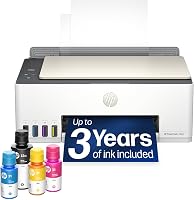
The 5003 includes a 135 ml black bottle and 50 ml bottles for each color. HP's plug-in refill system lets the bottles drain without squeezing.
Keep the printer level, protect the work surface, and avoid touching bottle openings. Seat the correct bottle as directed rather than pressing harder if ink doesn't flow.
Stop if a bottle won't fit or drain. Recheck the color, bottle preparation, and seating instructions before continuing.
Follow the guide's fill limits and closing steps. An open tank or loose cap is something to resolve before moving on to the printheads.
If ink spills, pause and use HP's cleanup instructions. Keep liquid away from power connections and don't improvise a cleaning method inside the printer.
How do you install the printheads?
Install printheads at the point shown in your model's guide, using its diagrams for position and handling. Don't infer the order from another Smart Tank model or a general video.
Remove only the protective material identified in the instructions. Avoid touching electrical contacts or ink nozzles, and close the retaining parts as shown.
A printhead that won't seat needs another look at the diagram, not extra force. Check its position and any remaining protective material before trying again.
Once installation is complete, allow the printer to finish any preparation cycle. Don't interrupt a normal setup process simply because it hasn't produced a page yet.
How do you load paper and connect your devices?
Start with plain paper and one device, then add other devices after the first connection works. This makes it easier to tell a printer setup problem from a phone or computer connection problem.
Load a neat stack without mixing sizes or paper types. Set the guides against the edges without squeezing the sheets into a curve.
The 6001 supports HP Smart app control and Apple AirPrint, and it has a USB 2.0 interface. Use the connection route that suits the device you actually print from.
All 4 models support wireless printing and have USB interfaces. Follow the software and connection instructions for your exact model, including when to attach a cable.
For wireless setup, check that your device and printer are joining the intended home network. Avoid a guest network if its settings prevent devices from communicating.
For USB setup, confirm the cable requirements before starting. Once connected, select the intended printer rather than an old printer entry or a document-saving option.
What should you check before regular printing?
Complete any required alignment, then print a short document containing black text and some color. Check the result before sending a long packet or using specialty paper.
The 5100 includes setup and reference guides. Keep both accessible rather than relying on memory when a prompt or refill question comes up.
Check that the page is straight, the text is complete, and the expected colors appear. Also confirm the paper size in the print settings matches the loaded paper.
Make one copy and save one scan if you'll use those functions. A successful print doesn't confirm that your scanning workflow is ready.
If you'll print on both sides, try a short document first. Check page order and orientation before committing to a larger job.
Which Smart Tank model suits your printing routine?
Choose mainly by two-sided printing, workload, and device needs. All 4 models print, copy, scan, and support borderless printing, so those shared functions won't settle the choice.
HP Smart Tank 5003: for everyday single-sided documents
Choose the 5003 for worksheets, forms, and household color documents when you can handle occasional page flipping. Its rated speeds are 10 black pages or 5 color pages per minute.
It uses manual duplex with driver support, so skip it if you regularly print long documents on both sides. The HP Smart Tank 5003 review gives a closer look at its fit for home use.
HP Smart Tank 6003: for regular two-sided packets
Choose the 6003 when reports, school packets, or reference documents make automatic duplex useful. It turns the sheets for supported two-sided jobs, reducing the need to stand by and reload pages.
HP rates its black printing at 12 pages per minute and the supplied ink for up to 8,000 color or 6,000 black pages. Skip it if most jobs are short and single-sided, with little benefit from automatic duplex.
HP Smart Tank 6001: for families using several devices
Choose the 6001 if its named app and AirPrint support suit your household's devices. It also has automatic duplex and rated speeds of 12 black or 7 color pages per minute.
HP advertises up to 2 years of included ink, compared with up to 3 years for the other models here. Don't choose on years alone: both the 6001 and 6003 quote the same included page yields.
HP Smart Tank 5100: for single-sided home office work
Choose the 5100 if you mainly print black text and don't need automatic page turning. Its rated black speed matches the two 6000-series models here, while its color speed is 5 pages per minute.
The 5100 and 5003 share a 17.11-inch width, 14.23-inch depth, and 6.19-inch height. Skip both if manual duplex would become a frequent chore.
For help deciding which paper-handling feature matters, read whether you need duplex or an ADF. Automatic duplex printing alone doesn't guarantee automatic two-sided scanning.
How should you judge included ink and ongoing care?
Compare page yields and your likely workload, rather than treating “years of ink” as a calendar promise. Photos, dense graphics, page coverage, and maintenance can change how far a supply goes.
HP quotes up to 6,000 color or black pages for the 5003 and 5100. Printing a few forms each month creates a different buying case from producing school materials every week.
If you're unsure you'll use enough ink to justify a tank printer, read whether ink tank printers are worth it.
Use these habits after setup:
- Check ink levels before a large job and follow the refill limits.
- Match replacement bottles to your exact model and region.
- Print something periodically rather than leaving an inkjet idle for long stretches.
- Use the power button for normal shutdown so the printer can finish its shutdown routine.
- Run maintenance only when print quality or the printer's instructions call for it.
Keep unused bottles closed and stored as their labels direct. Don't top up every tank simply because one color needs ink.
Why is an HP Smart Tank not printing after setup?
Check the connection and selected printer first, then investigate ink or printheads if paper feeds but the output is incomplete. Start with the error message rather than repeating the entire setup.
- No response: confirm power, the selected printer, and the wired or wireless connection.
- Paper won't feed: check the stack, guides, and any remaining packing material.
- Blank or missing colors: review filling and printhead installation before adding more ink.
- Streaks or gaps: follow the model's print-quality checks before running a cleaning cycle.
- Wrong size or clipped content: check document size, paper size, scaling, and print preview.
Repeated cleaning uses ink and won't solve a disconnected device or wrong paper setting. Change one thing at a time so you can tell which step resolves the issue.
See ink tank printer fixes and comparisons for related help. For error codes and model-specific instructions, use HP Support and select your exact printer.
Which HP Smart Tank setup path should you choose?
For HP Smart Tank setup, start with one connection and a short first document. Add other devices and more complex jobs once printing, copying, and scanning work as expected.
Choose the 6003 for frequent two-sided packets, or the 6001 when its app and AirPrint support fit your devices. Choose the 5003 for everyday single-sided work, or the 5100 when its higher rated black speed matters.
Before choosing another brand, compare Epson EcoTank and HP Smart Tank printers. Our guide to Brother INKvestment Tank also explains how that system differs.
Frequently asked questions
How do I set up an HP Smart Tank printer for the first time?
Use your exact model's setup guide to unpack, fill the tanks, fit any supplied printheads, load paper, and connect a device in the required order. Follow its timing for connecting power, allow setup to finish, and complete any alignment steps before sending a regular print job.
Do I need to fill the ink tanks during HP Smart Tank setup?
Yes, fill the tanks with the supplied ink as your model's guide directs before printing; match each bottle to the labeled color, keep the printer level, and let the refill system work without squeezing. If a bottle won't fit or drain, stop and check the instructions.
Can I set up an HP Smart Tank without Wi-Fi?
Yes, the HP Smart Tank 5003, 6003, 6001, and 5100 each have a USB interface for a wired connection; check your model's guide for compatible computers, software, cable requirements, and connection order. A USB connection to your computer does not by itself guarantee wireless printing for other devices.
Why is my HP Smart Tank not printing after setup?
Check power, paper, the selected printer, and the connection first, then read any error message; if the printer feeds paper but produces blank or incomplete pages, review the ink and printhead steps. Use your model's troubleshooting instructions before adding ink, removing parts, or starting repeated cleaning cycles.