How to Choose an Ink Tank Printer for Home
For households asking which ink tank printer is best for home use, choose the Epson EcoTank ET-2803 for AirPrint and everyday documents. Consider Canon G3270 for its higher stated black yield or HP Smart Tank 5003 for borderless printing; none of these 4 models offers automatic duplex.
On this page (10 sections)
- Which ink tank printer is best for home use?
- Which features should rule a printer in or out?
- How much desk space does a home ink tank printer need?
- Who should buy each of these home ink tank printers?
- How should you compare included ink and refill costs?
- Is an ink tank printer sensible for rare printing?
- How do you set up an ink tank printer correctly?
- What care habits prevent avoidable print problems?
- Which buying mistakes are easiest to avoid?
- Which ink tank printer should you choose for home use?
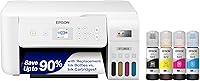
The Epson EcoTank ET-2803 is a strong starting point if you're deciding which ink tank printer is best for home use and want AirPrint, scanning and everyday color documents. Choose the Canon MegaTank G3270 for its higher stated black yield or the HP Smart Tank 5003 for borderless printing.
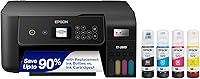
The Epson EcoTank ET-2800 also covers basic wireless printing, scanning and copying. None of these 4 printers offers automatic two-sided printing, so that requirement should send you toward a different model.
A refillable tank makes the most sense when your household prints regularly enough to use its ink supply. For the basics of how the system works, read our complete guide to ink tank printers.
Which ink tank printer is best for home use?
Choose by your most common task, then check the features that would make you reject a printer. A large ink supply won't make up for missing automatic duplex or awkward paper access.
| Your household's main need | Start with | Main reason |
|---|---|---|
| Printing from Apple devices | Epson EcoTank ET-2803 | Explicit AirPrint support |
| Basic wireless documents and scans | Epson EcoTank ET-2800 | Wi-Fi and a flatbed scanner |
| Regular black document printing | Canon MegaTank G3270 | Higher stated black yield than either Epson |
| Borderless creative projects | HP Smart Tank 5003 | Borderless printing support |
| Frequent two-sided packets | A different model | None here has automatic duplex |
Start by looking at the documents you printed last month. Separate school worksheets, work papers, color projects and photos, because each puts different demands on a printer.
Then list the jobs you avoid because your current printer makes them awkward. Repeatedly turning a stack of paper or scanning pages individually can matter more than a small difference in speed.
For more model options, browse our best ink tank printers roundup.
Which home ink tank printer fits your print volume?
For regular home printing, compare black yield and color yield separately. Use your monthly page count to judge how useful a tank system will be, rather than choosing the largest number.
Epson gives both the ET-2803 and ET-2800 replacement-set yields of up to 4,500 black pages and 7,500 color pages. Canon gives the G3270 yields of up to 6,000 black and 7,700 color pages per set.
HP says the Smart Tank 5003 includes ink for up to 6,000 color or black pages. Keep that included-ink figure separate from the replacement-set figures above.
Don't add black and color yields together to predict a single total. They're separate measures, and your actual ink use depends on page coverage, print settings and maintenance.
An occasional shipping label uses much less ink than a full-page color image. Count your pages, but also note what fills them.
Which features should rule a printer in or out?
Make paper handling and device compatibility your first filters. These affect nearly every print job and are harder to work around than a control panel you rarely touch.
Automatic duplex matters for long documents
Choose automatic duplex if you regularly print study packets, reports or other two-sided documents. The Epson and Canon models here print single-sided, while HP provides manual duplex through its driver.
Manual duplex still requires you to turn and reload the sheets. Before running a large job, use a short document to learn the correct paper direction and page order.
Our guide to duplex and ADF features explains how these functions change daily use.
Scanning needs are different from printing needs
All 4 models print, scan and copy, but an all-in-one label doesn't promise an automatic document feeder. If you often digitize stacks of paperwork, confirm feeder support before choosing.
The Epson models have flatbed scanners, which suit individual forms, receipts and pages that need careful placement. Leave space above the printer to open the lid fully.
For occasional signed forms, a flatbed can cover the job without making scanning the main reason to choose one printer over another. Frequent document batches deserve more attention to the scanning workflow.
Wireless printing needs a device check
The ET-2803 explicitly supports Apple AirPrint, Epson Smart Panel and voice-activated printing. The ET-2800 supports Wi-Fi printing from computers and mobile devices.
Canon supports wireless printing with smartphones and tablets, while HP supports mobile and wireless printing. Confirm software support for your computer or phone before committing to a particular connection method.
Don't assume every function available from a computer will also appear in a mobile app. If you rely on phone scanning or special paper settings, check those specific tasks.
How much desk space does a home ink tank printer need?
Allow working space around the printer, not just space for its body. You need access to paper paths, the scanner lid, cables and refill openings.
| Printer | Depth | Width | Height |
|---|---|---|---|
| Epson EcoTank ET-2803 | 22.8 in | 14.8 in | 10 in |
| Epson EcoTank ET-2800 | 14.8 in | 22.8 in | 10 in |
| Canon MegaTank G3270 | 21.9 in | 16.4 in | 10.6 in |
| HP Smart Tank 5003 | 14.23 in | 17.11 in | 6.19 in |
These dimensions are a starting point for measuring your desk. Confirm the operating footprint before choosing an enclosed shelf, since paper supports and access needs can increase the space required.
Use a firm, level surface away from heat and direct sunlight. A printer that must be moved every time you load paper or scan a form will be inconvenient even if it technically fits.
Who should buy each of these home ink tank printers?
Choose the model whose specific advantage matches your routine. The differences below matter more than treating all refillable printers as interchangeable.
Epson EcoTank ET-2803: for Apple devices and shared family documents
The ET-2803 suits households that print from several devices, especially when AirPrint is a priority. Its color display also gives you controls at the printer for everyday copying and menu choices.
Epson says the included ink can last up to 2 years based on roughly 125 pages per month. Use that monthly assumption to judge the claim against your household's routine.
Its stated speeds are up to 10 black pages or 5 color pages per minute. That's a reasonable fit for homework, forms and short documents, but allow time for larger color jobs.
Choose it if one person prints schoolwork from a laptop while another sends documents from an Apple device. The connection options give this model a clear role beyond its refillable tanks.
Skip it if most of your work involves long two-sided documents. Also avoid choosing it solely for voice printing unless you already have a clear use for that feature.
Epson EcoTank ET-2800: for straightforward wireless home tasks
The ET-2800 suits buyers whose needs stop at wireless documents, flatbed scans and copies. It covers those basic home tasks without requiring a more specialized reason to choose it.
Epson includes up to 2 years of ink, and its stated print speeds match the ET-2803. There isn't a speed or replacement-yield reason here to prefer one Epson over the other.
Choose between them by checking the exact device support and controls you need. If AirPrint is a firm requirement, the ET-2803 has explicit support in this comparison.
Epson recommends genuine ink for the ET-2800 and warns that damage from non-genuine ink may fall outside its limited warranty. Include correct refill supplies in your ownership plan.
Skip this model if automatic duplex is essential or your main aim is a faster document workflow. For more background on the range, read our Epson EcoTank guide.
Canon MegaTank G3270: for households printing regular black documents
The G3270 suits buyers who expect a steady stream of black documents and want its higher stated black yield. That difference is more useful than focusing on its small color-yield advantage over the Epson models.
Canon includes up to 2 years of ink. The printer has a 1.35 in square LCD and stated speeds of 11 black pages or 6 color pages per minute.
Those speeds give it a modest numerical lead here, but they don't make it a substitute for a printer built around fast batch work. For short home documents, focus first on the features you use daily.
Choose it for recurring school sheets, household records and work documents when single-sided output is acceptable. Its print, copy and scan functions also cover occasional paper administration.
Skip it if you expect the printer to turn pages automatically or want a large control screen. For brand-specific alternatives, see our Canon MegaTank guide.
HP Smart Tank 5003: for borderless projects and guided manual duplex
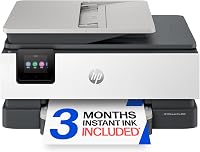
The Smart Tank 5003 suits households that want borderless printing alongside everyday documents. Its manual duplex driver support also helps buyers willing to reload paper for two-sided jobs.
HP says the included ink can last up to 3 years, depending on use. The refill system lets bottles drain into the tanks without squeezing them.
Choose it if crafts, color layouts or other projects make borderless output useful. Confirm support for your intended paper size and type before planning a particular project.
Its stated speeds match the Epson models, so borderless output and the refill approach are stronger reasons to choose it than speed. Manual duplex remains a task you supervise.
Skip it if you expect automatic two-sided printing or want long color jobs finished quickly. A lower printer body also doesn't remove the need for space to open the scanner and reach the tanks.
How should you compare included ink and refill costs?
Compare compatible refill bottles and likely use, then treat years-of-ink claims as a guide. A household printing daily will use the supply differently from one printing a few forms each month.
Ink supplied at setup also supports initial preparation of the ink system. Don't calculate an exact refill date simply by dividing a headline yield by your monthly page count.
Check the bottle codes for the exact model, even when another printer carries the same brand name. Similar names and bottle shapes aren't proof that inks are interchangeable.
For a useful cost comparison, consider replacement ink, paper and any maintenance supplies the printer requires. A large included supply matters less if the printer lacks a feature you'll need every week.
Is an ink tank printer sensible for rare printing?
Choose a tank printer for rare use only if its color and scanning functions justify the care involved. Long idle periods can allow ink to dry at the printhead.
If you print a few black documents each year, compare a monochrome laser. If you need occasional color, weigh a cartridge inkjet or access to a local print service against keeping a printer ready at home.
Don't buy mainly because the box contains several years of ink. Ink capacity and suitability for long gaps between jobs are different issues.
Our guide to ink tank printers versus inkjets explains the running-cost trade-offs. For care between jobs, see whether EcoTank ink dries out when you print rarely.
How do you set up an ink tank printer correctly?
Follow the model's setup order, especially when filling tanks, installing parts and starting initial ink preparation. Don't rush through these steps to reach the first print.
- Choose the permanent spot. Place the printer on a level surface with paper and scanner access.
- Remove transport materials. Follow the setup guide so packing tape or protective pieces don't remain inside.
- Match every bottle to its tank. Read both labels before opening a refill port.
- Follow the filling instructions. Stop at the specified level and secure the tank caps.
- Finish initial preparation. Keep power connected and wait for the printer to complete the process.
- Connect your devices. Use the brand's setup software and follow its network prompts.
- Check a small document. Confirm text, color, paper size and scan destination before starting a large job.
Don't fill tanks from memory or assume the bottle order matches the order of the tanks. Keep ink away from children and pets, and store remaining bottles according to the brand's directions.
Connect each household device before you urgently need it. A printer working from one laptop doesn't prove that another phone or computer is ready to print.
What care habits prevent avoidable print problems?
Use the correct ink, suitable paper and the printer's own maintenance controls. Small routine checks are more useful than repeated cleaning cycles without a clear reason.
Use the power button to shut the printer down, and let it finish before disconnecting power when necessary. This allows the printer to complete its normal shutdown process.
If a page has gaps or missing colors, start with the recommended nozzle check. Follow the model's cleaning instructions only when the result calls for it, since cleaning consumes ink.
Check tank levels before long jobs and refill according to the guide. Don't keep printing after a low-ink warning without checking what the printer requires.
Store paper flat and dry, then adjust the guides so they hold the stack without bending it. Choose the correct paper type and size in the print settings.
For routine drafts, use an appropriate draft setting to reduce ink use. Save higher-quality settings for documents or images that benefit from them, and preview large jobs to catch blank pages or poor scaling.
Which buying mistakes are easiest to avoid?
Avoid choosing by ink yield alone or assuming that a familiar feature name covers every workflow. These mistakes can leave you with plenty of ink but an awkward printer.
- Choosing on years of ink. Translate the claim into your own print pattern rather than treating it as a calendar promise.
- Confusing manual and automatic duplex. Decide whether you want to turn sheets yourself before buying.
- Assuming all-in-one includes a feeder. Check batch-scanning needs separately from basic scanning.
- Ignoring color speed. Color projects can take longer than short black documents.
- Measuring only the closed printer. Allow room for paper handling, scanning and refills.
- Expecting every paper to work. Confirm media support for envelopes, craft stock or photo paper you plan to use.
Before buying, write down 3 nonnegotiable requirements. If a model misses one, remove it from your shortlist instead of trying to justify the mismatch with a larger ink supply.
Which ink tank printer should you choose for home use?
Choose the ET-2803 for AirPrint, the ET-2800 for basic wireless home tasks, the G3270 for its higher stated black yield, or the Smart Tank 5003 for borderless projects. If automatic duplex is essential, choose beyond these 4.
To settle which ink tank printer is best for home use, picture your busiest normal week. Count the documents, note who sends them and decide how much paper handling you're willing to do.
Then compare your shortlist in our home ink tank printer picks, with your required features beside you.
Frequently asked questions
Which ink tank printer is best for home use?
Choose the Epson EcoTank ET-2803 if AirPrint and everyday document printing are your priorities; the Canon MegaTank G3270 suits buyers focused on stated black ink yield, while the HP Smart Tank 5003 adds borderless printing. Choose beyond these models if you need automatic two-sided printing.
Are ink tank printers good for occasional home printing?
Ink tank printers suit regular use better than long idle periods; liquid ink can dry at the printhead, so follow the brand's care guidance and address missing colors promptly. If you print only a few black documents each year, compare a monochrome laser before committing to a tank printer.
Should I choose an all-in-one ink tank printer?
Choose an all-in-one if you need to scan signed forms, copy household papers or save receipts as digital files; all 4 models here print, scan and copy. For frequent stacks of documents, check for an automatic document feeder separately; an all-in-one label alone does not promise one.
Do ink tank printers print on both sides automatically?
None of these 4 models offers automatic two-sided printing; the Epson and Canon models are single-sided, while the HP Smart Tank 5003 provides driver support for manual duplex. With manual duplex, you turn and reload the sheets yourself; automatic duplex handles that step inside the printer.
How do I compare ink tank page yields?
Compare black and color yields separately, using figures for the same type of ink supply; included ink and replacement-set yields are different measures. Up-to page counts are estimates, and dense graphics or photos use more ink than light text pages, so judge them against your actual printing habits.