9 Best All-in-One Inkjet Printers for Home Use (October 2026)
The best best all-in-one inkjet printers for home use include the Epson EcoTank ET-2803 for regular family printing, the Canon MegaTank G3290 for double-sided schoolwork, and the Epson EcoTank ET-2800 for everyday homework.
On this page (9 sections)
- How we chose the best all-in-one inkjet printers for home use
- Which printer fits your household's actual workload?
- Should you choose refillable tanks or cartridges?
- Which scanning and paper features save the most work?
- How should you compare speed, photos and desk space?
- How do you set up a home inkjet correctly?
- What care helps an inkjet stay ready?
- Which buying mistakes should you avoid?
- Which all-in-one inkjet printer should you choose for home use?
The Epson EcoTank ET-2803 is the best all-in-one inkjet printer for home use if you regularly print homework, forms and color pages, then scan or copy individual originals. Choose the Canon MegaTank G3290 for two-sided documents or the HP OfficeJet Pro 8125 for faster output and a document feeder.
Start with the work you do each week. A large ink supply helps regular printing, but it won't turn sheets over or feed a stack of originals through a scanner.
Our complete guide to ink tank printers for home explains refillable systems. You can also browse the best ink tank printers or compare ink tank and cartridge inkjet printers.
Our picks at a glance
-
1
-
2

-
3
How we chose the best all-in-one inkjet printers for home use
We favored refillable ink for regular household printing, then included cartridge models that offer useful document handling or suit lighter routines. ClipboardClub compared the ink systems, stated speeds, scanning arrangements, connections and paper handling.
The order reflects general home use, so a lower-ranked model can still be the better tool for a specific job. Someone scanning a weekly stack should put a feeder ahead of bottle capacity.
Page yields are estimates, not a promise about your own documents. Dense graphics, photos and maintenance use ink differently from lightly covered text pages.
| Product | Best for | Ink system | Functions | Duplex | Our score |
|---|---|---|---|---|---|
| Epson EcoTank ET-2803 | regular family printing | Refillable tanks | Print, scan, copy | Single-sided | 8.7 |
| Canon MegaTank G3290 | double-sided schoolwork | Refillable tanks | Print, copy, scan | Automatic | 8.6 |
| Epson EcoTank ET-2800 | everyday homework | Refillable tanks | Print, scan, copy | Single-sided | 8.4 |
| Canon MegaTank G3270 | color-heavy school projects | Refillable tanks | Print, copy, scan | Single-sided | 8.3 |
| HP OfficeJet Pro 8125 | busy home offices | Cartridges | Print, scan, copy | Automatic | 7.9 |
| HP OfficeJet Pro 8139 | fax-dependent home offices | Cartridges | Print, scan, copy, fax | Automatic | 7.8 |
| Brother Work Smart 1360 | shared cloud paperwork | Cartridges | Print, copy, scan | Automatic | 7.7 |
| HP Smart Tank 5003 | frequent single-sided handouts | Refillable tanks | Print, copy, scan | Manual | 7.6 |
| HP DeskJet 2955 | occasional household forms | Cartridges | Print, copy, scan | Manual | 6.8 |
Which printer fits your household's actual workload?
Choose the ET-2803 for routine family use, then move to another model when duplexing, document feeding, faxing or lighter use changes the choice. Each pick below has a clear buyer and a reason to skip it.
Best all-in-one home inkjet printers for different routines
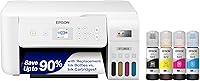
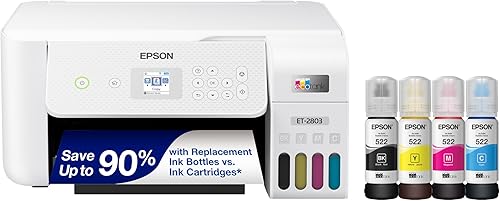
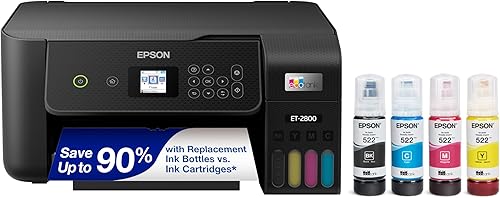
Epson EcoTank ET-2803
- Refillable ink tanks
- Flatbed scanner and copier
- AirPrint support
- Epson Smart Panel app
A strong fit for families printing homework, forms and color pages regularly. The flatbed handles individual originals, while mobile printing lets household members share the printer.
Pros
- Bottle refills instead of cartridges
- Flatbed scanning and copying
- AirPrint and Epson Smart Panel support
Cons
- No automatic two-sided printing
- Color print speed up to 5 pages per minute
The Epson EcoTank ET-2803 suits families that print throughout the month and want bottle refills instead of repeated cartridge changes. Homework, permission slips, recipes and reference pages fit that routine.
Epson gives replacement-set yields of up to 4,500 black and 7,500 color pages. These are useful for comparing ink capacity, but a page of small text and a full-page color image won't consume the same amount.
AirPrint and the Epson Smart Panel app help household members send jobs from their own devices. Its flatbed scanner also suits a receipt, signed form or other original that needs individual attention.
Choose it when most jobs are short and single-sided. Skip it if you regularly print two-sided packets or need to scan stacks without placing each page on the glass.
The Canon G3290 is the more practical tank choice for frequent two-sided work. Don't choose the Epson solely for its top position if that missing function will add work every week.
Canon MegaTank G3290
- Automatic two-sided printing
- Refillable ink tanks
- 2.7-inch color touchscreen
- 100-sheet plain-paper capacity
Choose this tank printer for recurring worksheets, reading packets and other two-sided documents. Its touchscreen also gives you a larger control surface than the G3270.
Pros
- Automatic two-sided printing
- Color touchscreen
- Supports documents and borderless photos
Cons
- 100-sheet plain-paper capacity
- Color print speed up to 6 pages per minute
The Canon MegaTank G3290 is the strongest fit here for families printing reading packets, longer assignments and work documents on both sides. Automatic duplex removes the need to reinsert a stack halfway through a job.
Canon gives yields of up to 6,000 black and 7,700 color pages per ink set. Its pigment black and dye-based color inks support document printing and borderless photos up to 8.5 x 11 inches.
The 2.7-inch color touchscreen gives you more room for controls than the small display on the G3270. Its 100-sheet plain-paper capacity suits home batches, though you should expect to reload during larger runs.
Choose the G3290 if you want a refillable system and regularly use both sides of the sheet. Skip it if scanning batches is your main task, since the OfficeJet and Brother options provide document feeders.
For photos, match the paper type and size in the print settings before sending the job.
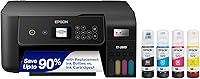
Epson EcoTank ET-2800
- Refillable ink tanks
- Flatbed scanning and copying
- Wireless connectivity
- Color display
A straightforward choice for homework and household forms when single-sided output is enough. Wireless connections let computers and mobile devices share its core functions.
Pros
- Bottle-fed ink system
- Flatbed for individual originals
- Wireless printing
Cons
- No automatic two-sided printing
- Color print speed up to 5 pages per minute
The Epson EcoTank ET-2800 fits students and families that mainly need homework pages, forms and occasional copies. It keeps the focus on basic household jobs rather than document automation.
Its stated bottle-set yields match the ET-2803, and both have single-sided output. That makes the ET-2800 an alternative within the same general type of printer, rather than a step toward faster office work.
The flatbed is useful for scanning a signed page or copying an original you don't want passing through a feeder. Wireless access also lets more than one household device use the printer.
Choose it when you want an Epson tank model and can manage short jobs one original at a time. Skip it for recurring two-sided packets or long color documents that you need quickly.
Our Epson EcoTank ET-2800 review covers the model in more detail. Compare the functions you need before treating the small model-number difference as a reason to choose one Epson over the other.
Canon MegaTank G3270
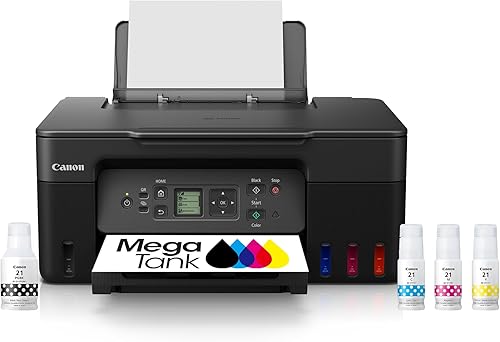
- Refillable ink tanks
- Wireless print, copy and scan
- 1.35-inch square LCD
- Ink set included
A useful tank option for families printing color assignments and reference pages. Choose it when bottle capacity matters more than automatic duplex or a larger display.
Pros
- High stated color page yield
- Wireless printing from mobile devices
- Ink set included
Cons
- Single-sided printing
- Small LCD display
The Canon MegaTank G3270 suits households printing regular color assignments, diagrams and study pages without needing automatic duplex. Its appeal is refillable ink for repeated everyday output.
Canon gives the same stated bottle-set yields as the G3290. The main buying distinction is therefore the work you want the printer to automate, rather than a larger advertised ink supply.
The 1.35-inch square LCD is small, so consider how often you'll use controls on the printer itself. Wireless printing from a phone or tablet gives you another way to send documents.
Choose it when your documents are mostly single-sided and a small screen won't bother you. Skip it if you expect to flip large stacks often, since the G3290 handles that step automatically.
For more detail, read our Canon MegaTank G3270 review. If several people share the printer, agree on paper settings so one person's photo job doesn't leave the next document using the wrong preset.
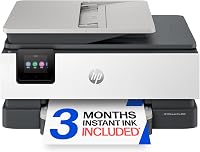
HP OfficeJet Pro 8125
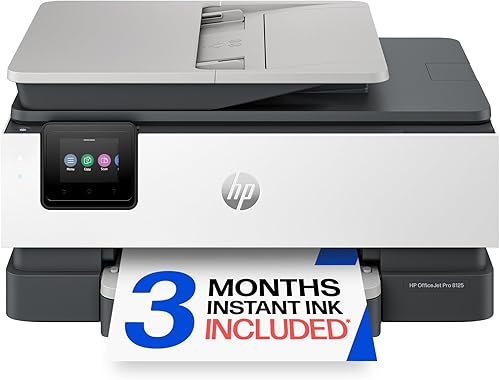
- Up to 20 black and 10 color pages per minute
- Automatic duplex
- Automatic document feeder
- 225-sheet input tray
Choose the 8125 for recurring reports, forms and batches of loose originals. Its feeder, larger tray and faster stated output favor document work over tank capacity.
Pros
- Faster stated document speeds than the tank picks
- Automatic document feeder
- Ethernet, USB and wireless connections
Cons
- Requires cartridges with original HP chips or circuitry
- Instant Ink subscription carries a monthly fee after the trial unless canceled
The HP OfficeJet Pro 8125 is the better match for a home office that repeatedly prints reports and scans loose paperwork. Its automatic document feeder saves you from placing every suitable original on the glass.
Stated speeds reach 20 black and 10 color pages per minute. Automatic duplex and a 225-sheet input tray also support longer document jobs with fewer manual steps.
Ethernet, USB and wireless connections give you options for a fixed desk or a shared home network. Choose the connection that suits where the printer will stay, then set it up on each device that needs access.
Skip this model if bottle refills are your priority. It uses cartridges and blocks cartridges with non-HP chips or circuitry.
The included 3-month Instant Ink trial requires a subscription, with a monthly fee afterward unless canceled. Treat enrollment as a separate decision from buying the printer, and read the plan's terms before accepting it.
HP OfficeJet Pro 8139

- Print, scan, copy and fax
- Automatic duplex
- Automatic document feeder
- 225-sheet input tray
Fax capability makes the 8139 the more suitable OfficeJet for households with recurring fax requirements. Its document feeder also helps with multi-page scanning and copying.
Pros
- Fax function
- Automatic document feeder
- Automatic duplex
Cons
- Requires cartridges with original HP chips or circuitry
- Instant Ink subscription carries a monthly fee after the trial unless canceled
The HP OfficeJet Pro 8139 is the choice for a home office with a real need for fax capability. Pick it for that workflow rather than assuming a higher model number means faster printing.
Its stated output speeds match the 8125, and it also combines a document feeder, automatic duplex and a 225-sheet tray. Those features suit recurring forms, reports and multi-page copies.
Before buying for fax, confirm how you'll connect and use the fax function. Sending a scan by email is a different workflow, so decide which one the recipient actually requires.
Skip the 8139 if you only need print, scan and copy, since the 8125 already covers those jobs. The same HP cartridge-chip restriction applies here.
Its 1-year Instant Ink trial also requires a subscription, followed by a monthly fee unless canceled. A longer trial can affect your choice, but it shouldn't outweigh whether the printer's functions fit your work.
Brother Work Smart 1360

- Automatic duplex
- 20-sheet single-sided document feeder
- 150-sheet paper tray
- Cloud app connections
A practical choice for households that keep documents in cloud services and scan loose pages. Automatic duplex supports paper-saving document output.
Pros
- Print from and scan to supported cloud apps
- Automatic duplex
- 20-sheet document feeder
Cons
- Uses replacement cartridges
- Document feeder scans one side at a time
The Brother Work Smart 1360 suits households that keep paperwork in shared cloud folders. Supported connections include Google Drive, Dropbox, Box and OneDrive, so the printer can fit a document routine built around those services.
It combines automatic duplex printing with a 20-sheet single-sided document feeder and a 150-sheet tray. Stated print speeds reach 16 black and 9 color pages per minute.
The feeder is useful for batches of loose originals, but it scans one side at a time. If your originals have writing on both sides, plan for the extra handling and check the saved page order.
Choose it for mixed printing and scanning where cloud access matters. Skip it if you want bottle refills or expect automatic scanning of both sides.
Set up cloud access with the account that should receive the files. In a shared household, a clearly named scan folder helps keep school forms and work documents from ending up in the wrong place.
HP Smart Tank 5003
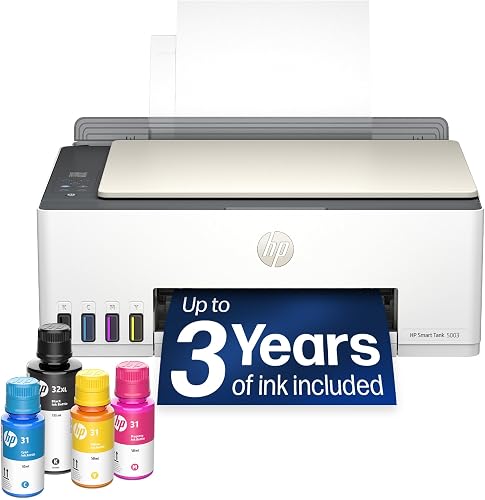
- Refillable ink tanks
- HP claims up to 3 years of included ink
- Borderless printing
- Mobile and wireless printing
A tank option for households making regular handouts and color pages. The included supply is useful, but manual duplex makes it less appealing for frequent two-sided documents.
Pros
- Refillable tank system
- Substantial included ink supply
- Wireless print, copy and scan
Cons
- Manual two-sided printing
- Color print speed up to 5 pages per minute
The HP Smart Tank 5003 fits households making regular single-sided handouts and color pages. It offers bottle refills and borderless printing, along with the core scan and copy functions.
HP claims up to 3 years of included ink, with up to 6,000 black or color pages from the supplied ink. Treat the year figure as a usage-based estimate, not a shelf-life promise or a fixed refill date.
Its refill system lets the bottles drain into the tanks without squeezing. Follow the setup sequence closely, including any printhead installation steps, before sending the first document.
Choose it if you want an HP tank printer and don't mind manually turning pages for two-sided jobs. Skip it if long duplex documents are a normal part of your week.
For short batches, manual duplex can be manageable. Start with a small job to learn the correct paper orientation before committing a larger stack.
HP DeskJet 2955

- Print, copy and scan
- 60-sheet input tray
- Wireless printing
- Flatbed scanner
A basic cartridge option for short jobs such as forms, letters and recipes. Its small tray and manual duplex suit light use rather than repeated document batches.
Pros
- Compact design
- Wireless printing
- Flatbed scanning and copying
Cons
- Uses black and tri-color cartridges
- Manual two-sided printing
The HP DeskJet 2955 suits occasional forms, letters and recipes when you want basic printing, scanning and copying. Its 60-sheet tray fits short jobs rather than repeated document batches.
Stated speeds reach 7.5 black and 5.5 color pages per minute. That is a reasonable match for a few pages, but longer jobs need more patience.
It uses a black cartridge and a tri-color cartridge. With a combined color cartridge, heavy use of one color can affect when you need a replacement.
Choose it when your routine is light and you don't need a document feeder. Skip it if regular color assignments or larger batches are likely to become the norm.
Occasional use still calls for inkjet care. Leaving any inkjet unused for long stretches can cause nozzle problems, so a cartridge model shouldn't be treated as a maintenance-free answer to rare printing.
Should you choose refillable tanks or cartridges?
Choose tanks for regular output and cartridges when a particular model's document features or lighter-use design suits you better. Both are inkjet systems, so the refill method doesn't remove the need for proper care.
Estimate a normal month rather than choosing around your busiest week. Include schoolwork, work documents and color pages, then ask whether those jobs happen steadily or in brief bursts.
A large ink supply can be useful, but it doesn't guarantee your exact running cost. Replacement supplies, page coverage and ink used for maintenance all affect the result.
If you print only rarely, avoid choosing by advertised years of included ink. Our guide to whether ink tank printers are worth it explains the trade-off, while EcoTank care for infrequent printing covers long idle periods.
Which scanning and paper features save the most work?
Automatic duplex helps printed output; an ADF helps scanned originals. Choose these separately, because a printer can offer one without the other.
A flatbed is useful for receipts, fragile pages and individual originals. An automatic document feeder is better for suitable loose sheets when you want to scan or copy a stack.
Automatic duplex printing doesn't guarantee two-sided scanning support. For that job, confirm the feeder's exact function instead of relying on the word “duplex” alone.
Before buying, picture a real task such as scanning a signed packet and printing a copy. Count each manual step, including flipping originals, turning printed sheets and arranging saved pages.
Also check paper size, supported media and tray capacity against your usual jobs. A bigger tray reduces reloads, but it won't make an unsuitable paper type work correctly.
How should you compare speed, photos and desk space?
Compare your usual document type, not just the highest page-per-minute number. Short jobs are affected by startup time, while long color files can take longer than simple text pages.
Don't treat a document speed figure as a photo speed promise. Photos also need suitable paper and the correct quality setting, which can change how long a job takes.
For a home printer, leave space for paper feeding, output, cables and opening the scanner lid. A machine that fits on a shelf while closed may be awkward to use there.
Choose a level, stable surface away from direct heat and places where paper gets damp. Keep the printer within useful reach so refilling, clearing paper and scanning don't become difficult chores.
How do you set up a home inkjet correctly?
Follow the model's setup order, especially for filling tanks, installing cartridges or printheads, and completing initial ink preparation. Don't rush ahead because the printer appears ready from the outside.
- Remove the packing materials and transport tape described in the setup guide.
- Place the printer where the trays and scanner lid can open.
- Install the correct supplies, matching each ink color to its marked position.
- Let the initial preparation finish without cutting power.
- Add the printer to your computer or phone, then print a short document and save a sample scan.
Use the intended home network when setting up wireless access. A guest network may keep devices apart, which can stop a phone or computer from finding the printer.
Install the full printer software if you need settings that the basic print screen doesn't show. Check paper size, duplex options and scan destinations before the first urgent job.
The HP Smart Tank setup guide gives a more focused route for that family. If several people will print, finish setup on their devices while you're already working through it.
What care helps an inkjet stay ready?
Use the printer regularly and follow its maintenance prompts. An inkjet that sits unused for long stretches can develop blocked nozzles, regardless of how much ink remains.
Turn it off with its power button and let shutdown finish before disconnecting power. That allows the printer to complete its normal shutdown process.
Keep paper dry, flatten curled sheets and adjust the guides without bending the stack. Remove staples and clips from originals before placing suitable pages in a feeder.
If output has missing lines or colors, follow the model's nozzle-check and cleaning instructions. Don't run repeated cleaning cycles without checking the result, since cleaning consumes ink.
Use ink made for the exact printer model and never mix colors or bottle types. Store remaining supplies as directed, and avoid opening parts that the maintenance instructions don't tell you to remove.
Which buying mistakes should you avoid?
The biggest mistake is choosing ink capacity over the work you actually do. A tank printer can still be the wrong fit if manual page handling becomes a weekly burden.
Don't assume all-in-one includes a feeder, fax or automatic duplex. The term covers combined functions, while the details determine how much work remains for you.
Don't choose a subscription trial as if it were the printer's permanent ink arrangement. Understand the ongoing plan, cancellation terms and supply requirements before enrolling.
Avoid treating advertised page yields as a count of full-page photos. Use them to compare capacity, then judge your own needs by the mix of documents you print.
Finally, check the features you need before comparing closely named models. Our Epson EcoTank guide explains the family, and our guide to choosing an ink tank printer for home helps narrow the choice.
Which all-in-one inkjet printer should you choose for home use?
The best all-in-one inkjet printer for home use is the one that handles your recurring jobs with the fewest avoidable steps. Use this decision rule before choosing by rank:
- Regular family pages and individual scans: choose the Epson EcoTank ET-2803.
- Frequent two-sided school or work documents: choose the Canon MegaTank G3290.
- Stacks of paperwork and faster document output: choose the HP OfficeJet Pro 8125.
- A recurring fax requirement: choose the HP OfficeJet Pro 8139.
- Shared cloud documents: choose the Brother Work Smart 1360.
- Occasional short forms and letters: choose the HP DeskJet 2955.
If you've settled on bottle refills, compare our best ink tank printers for home use. Bring a short list of your normal jobs so ink capacity doesn't crowd out the features you'll use every week.
Our top 3 picks at a glance
-
1
-
2
-
3
Frequently asked questions
What is the best all-in-one inkjet printer for home use?
The Epson EcoTank ET-2803 is our top pick for regular household printing, scanning and copying. Choose the Canon MegaTank G3290 if automatic two-sided output is part of your weekly routine, or the HP OfficeJet Pro 8125 if you regularly scan stacks and need faster document output.
Are ink tank printers better than cartridge printers for home use?
Ink tanks are a strong fit for regular printing, but the right paper-handling features can matter more than the refill method. A cartridge printer with a feeder may save more time for paperwork.
Compare ink tank and inkjet printers before deciding which system fits your volume.
Do all-in-one inkjet printers print on both sides automatically?
Only some models turn sheets automatically, so look for automatic duplex rather than just all-in-one. The Canon G3290, both OfficeJet models and Brother Work Smart 1360 offer it.
Automatic duplex printing does not mean a document feeder scans both sides; those are separate functions that need separate checks.
Do home inkjet printers scan and copy?
All the printers in this guide scan and copy as well as print. Choose a flatbed for individual originals, receipts and fragile pages, or a document feeder for batches of suitable loose sheets.
Check scanning needs separately from printing needs, especially if you handle two-sided originals.
How do I choose an all-in-one printer for home?
Start with your usual jobs: short forms, school packets, photos or stacks of paperwork. Then choose the ink system, duplex support and scanner arrangement that remove the most work.
Our guide to choosing an ink tank printer for home gives you a broader checklist for refillable models.