10 Best Cartridge-Free Printers (October 2026)
The best cartridge-free printers include the Canon MegaTank G3290 for everyday home printing, the Epson EcoTank ET-2980 for family color printing, and the Epson EcoTank ET-4950 for busy home offices.
On this page (6 sections)
- Which cartridge-free printers suit different needs?
- How do the best cartridge-free printers compare?
- How should you choose the best cartridge free printer?
- How do you set up a cartridge-free printer correctly?
- What care prevents common tank-printer problems?
- Which cartridge-free printer should you choose?
The Canon MegaTank G3290 is the best cartridge-free printer for most homes because it combines automatic two-sided printing, wireless print, copy, and scan, and a color touchscreen. Choose the Epson EcoTank ET-4950 instead when recurring office paperwork calls for a document feeder, fax, and a larger tray.
Cartridge-free means you refill tanks from bottles rather than replace ink cartridges. It doesn't mean every model handles documents the same way or needs no care.
For more options, browse our best ink tank printers. If you're weighing the switch, start with are ink tank printers worth it and our ink tank printer vs inkjet running costs comparison.
Our picks at a glance
-
1

-
2

-
3

Which cartridge-free printers suit different needs?
Choose the G3290 for general home use, then move toward a feeder-equipped model if scanning stacks is part of your week. These picks follow site-wide scores, but a required feature should decide your shortlist.
ClipboardClub compared refill systems, document handling, connections, and ink supplies. We keep included-ink figures separate from replacement-bottle yields because they answer different buying questions.
Canon MegaTank G3290
- Wireless print, copy, and scan
- Automatic two-sided printing
- 2.7 in color touchscreen
- Full ink set included
The G3290 balances household document printing with occasional photos. Automatic duplex and a color touchscreen make it a practical first choice for everyday home tasks.
Pros
- Automatic two-sided printing
- Color touchscreen
- Borderless photos up to 8.5 x 11 in
Cons
- 100-sheet plain-paper capacity
- Slower document speeds than the ET-4950
The G3290 is the right starting point for households that print homework, forms, recipes, and occasional photos. Its 2.7 in color touchscreen gives you on-printer controls when you don't want to reach for a phone.
Automatic duplex is useful for reading packets and longer school assignments. The 100-sheet plain-paper capacity suits smaller jobs, though a household printing long batches will reload more often than with the ET-4950.
Canon uses pigment black ink with dye-based colors and supports borderless photos up to 8.5 x 11 in. That gives it a useful role beyond paperwork without making photo printing the main reason to buy.
Choose it for a shared family printer with straightforward controls. Skip it in favor of a feeder-equipped pick if scanning a stack of forms is routine, since placing each original on a flatbed becomes the slower part of the job.
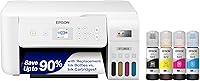
Epson EcoTank ET-2980
- Print, copy, and scan
- Automatic two-sided printing
- Epson Smart Panel mobile printing
- 100-sheet capacity
The ET-2980 suits families printing schoolwork, forms, and color documents. Mobile printing and automatic duplex cover common household jobs without an office-focused feature set.
Pros
- Wireless print and scan
- Automatic two-sided printing
- Keyed EcoFit refill bottles
Cons
- 100-sheet paper capacity
- Frequent paper loading for longer batches
The ET-2980 suits a family that prints from several devices and wants automatic duplex without moving to a larger office model. Epson Smart Panel supports mobile printing and scanning, so a computer doesn't have to be the center of every job.
Its print speeds are 15 black and 8 color pages per minute. Those figures make it a stronger fit than the ET-2900 for households that regularly send several documents at once.
Epson rates the included ink for up to 6,600 black and 5,500 color pages. Keyed EcoFit bottles help match each color to the right tank during refills.
Buy it for homework, forms, and everyday color pages. Skip it if you need a larger paper supply for unattended batches, since its 100-sheet capacity still calls for regular loading.
Our Epson EcoTank printer guide helps you compare the wider range.
Epson EcoTank ET-4950
- Automatic document feeder
- 250-sheet paper tray
- Fax and automatic two-sided printing
- Ethernet and Wi-Fi
The ET-4950 is the strongest fit here for recurring office paperwork. Its document feeder, fax, and larger tray address jobs that become awkward on a basic home printer.
Pros
- Automatic document feeder
- 250-sheet paper tray
- Ethernet and Wi-Fi
Cons
- Taller than the ET-2980
- Extra office functions may go unused at home
The ET-4950 is the clearest choice for a home office that handles paperwork throughout the week. Its 250-sheet tray is especially useful when several people print without checking the paper supply first.
A document feeder reduces the work of scanning or copying loose pages. Fax adds a reason to choose this model over the ET-3950 if your workplace or clients still require it.
Epson rates print speed at 18 black and 9 color ISO pages per minute. Ethernet also lets you connect it to a wired office network, while Wi-Fi supports a less fixed setup.
Choose it for recurring forms, reports, and multi-page records. Skip it if your typical job is a single shipping label or short document, because the larger tray and office functions won't solve much for you.
Before buying for double-sided records, confirm the feeder's scan process separately from automatic duplex printing.
Epson EcoTank ET-3950

- Flatbed and automatic document feeder scanner
- 18 black and 9 color ISO pages per minute
- Automatic two-sided printing
- Ethernet and Wi-Fi
The ET-3950 suits households that regularly turn paper records into digital files. Its flatbed and document feeder handle different originals, while Ethernet supports a shared workspace.
Pros
- ADF and flatbed scanning
- Ethernet and Wi-Fi Direct
- Automatic two-sided printing
Cons
- Taller than the ET-2980
- Document feeder adds little for occasional single-page scans
The ET-3950 suits a household that scans school records, receipts, and work documents often enough to need a feeder. Its flatbed and automatic document feeder give you separate ways to handle delicate originals and loose sheets.
Use the flatbed for originals that shouldn't travel through rollers, such as a fragile receipt. A feeder makes more sense for a neat stack of ordinary document pages.
Wi-Fi Direct, Wi-Fi, Ethernet, and USB give you several connection choices. That flexibility matters if you move from a single computer to a shared home workspace later.
Epson gives bottle yields of up to 8,500 black and 6,500 color pages. Keep those figures separate from the usable ink remaining after initial setup when comparing included supplies.
Choose it when digitizing paperwork is a regular task. If fax is essential, move to the ET-4950; if scans are rare and usually one page, the G3290 or ET-2980 is a simpler fit.
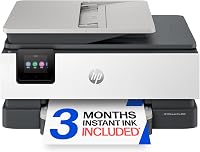
HP Smart Tank 7603

- Print, copy, scan, and fax
- Automatic document feeder
- Automatic two-sided printing
- Borderless printing
The Smart Tank 7603 suits an HP-based home office that still needs fax. It combines document feeding and automatic duplex with borderless printing for occasional creative jobs.
Pros
- Fax and automatic document feeder
- Automatic two-sided printing
- Wireless and Ethernet connections
Cons
- Larger footprint than the ET-2900
- Fax adds little if your work is fully digital
The Smart Tank 7603 suits an HP-focused office that needs fax alongside document feeding. Automatic duplex, wireless printing, and Ethernet cover both individual desk use and a shared network.
Borderless printing gives it another role for photos and creative pages. That can be useful when one machine must handle work forms during the week and family projects on weekends.
HP rates the included ink for up to 6,000 black or 8,000 color pages. Its refill bottles plug into the tanks and drain without squeezing, so follow the fill instructions rather than forcing ink through.
At 16.83 in wide and 14.33 in deep, the body needs a planned spot on your desk. Leave extra room for paper handling and access above the scanner.
Choose it if fax is a real requirement. Skip it in favor of the 7303 when you want HP's feeder-equipped setup for printing, copying, and scanning without needing fax.
Epson EcoTank Pro ET-5150

- 17 black and 9.5 color ISO pages per minute
- Epson DURABrite ET pigment inks
- Automatic two-sided printing
- Face-down document output
The ET-5150 focuses on business documents with pigment inks, Ethernet, and face-down output. It suits a shared workspace where document handling matters more than casual photo printing.
Pros
- Pigment inks for document work
- Automatic two-sided printing
- Face-down output for greater privacy
Cons
- Requires careful space planning
- Slower black print speed than the ET-4950
The ET-5150 is a document-first choice for a shared office or a home workspace with regular business output. DURABrite ET pigment inks distinguish it from picks chosen mainly for mixed family printing.
Face-down output also makes sense in a shared room because the printed side isn't immediately exposed. Collect sensitive papers promptly even with that feature.
Epson rates it at up to 17 black and 9.5 color ISO pages per minute. Replacement bottle sets are rated for up to 7,500 black and 6,000 color pages, which is a refill comparison rather than an included-ink promise.
Wireless printing, Ethernet, and automatic duplex suit recurring reports and client documents. Buy it when those document-focused features matter more than a compact household setup.
Skip it if you have only a narrow shelf available. Plan space for the full operating setup, including paper access, instead of relying on a closed-printer measurement alone.
Epson EcoTank ET-2900

- Print, copy, and scan
- 100-sheet tray
- 1.44 in color screen
- Wireless and USB connections
The ET-2900 suits a smaller desk used for everyday forms and color pages. Its compact body is the main reason to choose it over models built for longer document runs.
Pros
- 12.5 in deep and 14.2 in wide
- Color screen
- Keyed EcoFit bottles
Cons
- 100-sheet paper capacity
- Lower included black ink yield than the ET-2980
The ET-2900 is the strongest fit here when desk space comes first and most jobs are short. Its body measures 12.5 in deep, 14.2 in wide, and 6.4 in high.
It handles printing, copying, and scanning, with a small color screen for controls. Wireless and USB connections let it work as a household printer or beside one computer.
Epson rates the included ink for up to 3,600 black and 6,500 color pages. If you mainly print text, compare that black supply with the ET-2980 rather than choosing by the color figure.
The 11 black and 6 color ISO pages-per-minute speeds suit forms and shorter assignments. Choose it when saving space matters more than finishing long queues quickly.
Skip it for frequent document batches or feeder-based scanning. Also measure clearance for opening the scanner and handling paper, since a compact body still needs usable space around it.
HP Smart Tank 7303

- Print, copy, and scan
- Automatic document feeder
- Automatic two-sided printing
- Wireless and Ethernet connections
The Smart Tank 7303 fits households that print and digitize multi-page documents regularly. It provides document feeding and automatic duplex without making fax the reason to buy.
Pros
- Automatic document feeder
- Automatic two-sided printing
- Borderless printing
Cons
- Larger footprint than the ET-2900
- Heavier than the ET-2980
The Smart Tank 7303 suits a paper-heavy household that wants an HP model for regular printing and scanning. Its automatic document feeder is the main reason to choose it over a basic flatbed-focused home printer.
Automatic duplex reduces page turning for school packets and work documents. Borderless printing adds room for creative projects, while wireless and Ethernet connections support different home layouts.
HP rates the included supply for up to 6,000 black or 8,000 color pages. Treat that as a page-yield comparison rather than a fixed calendar of ink use.
Choose it if several people share the printer and you often digitize loose documents. Put it somewhere everyone can reach the scanner and paper path without moving the machine.
Skip it if fax is required, since the 7603 is the relevant HP pick for that job. For occasional single-page scans, a smaller model may fit your desk and routine better.
Brother INKvestment Tank 780

- Automatic two-sided printing
- 150-sheet paper tray
- 20-page single-sided automatic document feeder
- Cloud app connections
The INKvestment Tank 780 suits small offices that keep documents in cloud services. A single-sided feeder, manual feed slot, and cloud app access support mixed daily paperwork.
Pros
- 20-page automatic document feeder
- 1-sheet manual feed slot
- Cloud app connections
Cons
- Cloud functions require internet access and an account
- Document feeder scans only one side per pass
The Brother INKvestment Tank 780 suits small offices that store files in cloud services. Its cloud app connections include Google Drive, Dropbox, Box, and OneDrive, with internet access and an account required.
The 20-page feeder scans one side per pass. That's useful for ordinary single-sided forms, but double-sided originals need extra handling.
A 150-sheet tray sits between the smaller home trays and the ET-4950's larger supply. The separate 1-sheet manual feed slot is useful when you need to feed a special sheet without changing the main stack.
Brother rates speeds at up to 16 black and 15.5 color pages per minute. Its included-ink estimate of up to 3 years assumes 150 pages monthly, split between 60% black and 40% color.
Choose it for cloud-based paperwork and mixed daily jobs. Skip it if your main task is turning stacks of double-sided originals into digital files with minimal manual work.
HP Smart Tank 5100

- Print, copy, and scan
- Wireless printing
- Borderless printing
- Manual two-sided printing
The Smart Tank 5100 suits everyday wireless printing when most pages are single-sided. Choose another model if automatic duplex would save you regular paper handling.
Pros
- Wireless printing
- Print, copy, and scan
- Borderless printing
Cons
- Manual two-sided printing
- Slower color speed than several picks here
The Smart Tank 5100 suits home users whose documents are mostly single-sided. It covers wireless printing, copying, scanning, and borderless output without making office paperwork its main purpose.
Its manual duplex is the buying decision to settle first. The driver can guide double-sided printing, but you still turn and reload the sheets.
HP rates it at 12 black and 5 color pages per minute. That's fine for a few forms or creative pages, while repeated color batches will take longer than on several picks above.
The included ink is rated for up to 6,000 black or color pages. A large ink supply doesn't remove the extra handling required for two-sided work.
Choose it when wireless printing and occasional scans meet your needs. Skip it if you regularly print reports, reading packets, or other documents on both sides, since automatic duplex will save you effort on every batch.
How do the best cartridge-free printers compare?
Compare paper handling first, then connections and ink supply. The biggest practical difference is often how much paper you must load, turn, or place on the scanner yourself.
| Product | Best for | Functions | Two-sided printing | Ink yield | Our score |
|---|---|---|---|---|---|
| Canon MegaTank G3290 | everyday home printing | Print, copy, scan | Automatic | Up to 6,000 black and 7,700 color pages per full set | 8.6 |
| Epson EcoTank ET-2980 | family color printing | Print, copy, scan | Automatic | 8.5 | |
| Epson EcoTank ET-4950 | busy home offices | Print, copy, scan, fax | 8.2 | ||
| Epson EcoTank ET-3950 | frequent document scanning | Print, copy, scan | 8.1 | ||
| HP Smart Tank 7603 | fax-dependent offices | Print, copy, scan, fax | Automatic | 8.0 | |
| Epson EcoTank Pro ET-5150 | shared document workspaces | 7.9 | |||
| Epson EcoTank ET-2900 | smaller home desks | Print, copy, scan | 7.6 | ||
| HP Smart Tank 7303 | paper-heavy households | Print, copy, scan | Automatic | 7.6 | |
| Brother INKvestment Tank 780 | cloud-based office work | Print, copy, scan | 7.2 | ||
| HP Smart Tank 5100 | single-sided home documents | Print, copy, scan | 7.0 |
Don't choose solely by the highest ink yield or print resolution. A feeder can save more time than a higher page count if scanning is your daily chore, while automatic duplex matters most for long documents.
How should you choose the best cartridge free printer?
Choose around your busiest normal week, not a one-time project. Count the pages you print, the originals you scan, and the devices that need access.
Match a cartridge-free printer to your print volume
Regular color printing is a strong reason to consider a tank system. If months pass between jobs, a large ink supply may offer less value than you expect.
Estimate your monthly use from actual habits, such as weekly worksheets or recurring work reports. Avoid buying a high-volume setup for a print routine you only hope to develop.
For very rare printing, compare an ink tank with a laser printer or occasional print-shop use. Our ink tank printer vs laser printer guide explains how the choice changes with your workload.
Separate duplex printing from document feeding
Automatic duplex prints both sides of a sheet; an ADF moves originals through a scanner. One feature doesn't guarantee the other, and neither alone confirms automatic two-sided scanning.
For bound pages, photos, or delicate originals, use a suitable flatbed. For loose multi-page forms, a feeder removes repeated trips to the scanner lid.
Read our guide to ink tank printers with automatic duplex if both printing and scanning workflows matter.
Compare ink supplies on equal terms
Compare included ink with included ink, and replacement-bottle yield with replacement-bottle yield. Setup uses some ink to prepare the system, so refill yields don't automatically describe the first usable supply.
Black and color page figures aren't totals you should add together. Photos, dense graphics, cleaning cycles, and print settings all affect how quickly ink runs down.
An “up to 3 years” claim depends on a usage pattern. Brother states its monthly page mix here, while your household may use ink at a different rate.
Check space, connections, and paper needs
Measure the operating space, including open trays, the scanner lid, and access for refilling. Don't place a printer where reaching the rear or lifting the lid requires moving it each time.
Ethernet suits a fixed shared network, USB suits a nearby computer, and Wi-Fi gives you more placement choices. Keep wireless placement within reliable router coverage.
Also check the sizes you scan, not just the sizes you print. Legal-size paper support doesn't by itself confirm a legal-size flatbed or every possible scan workflow.
Our complete guide to ink tank printers for home covers these tradeoffs in more detail.
How do you set up a cartridge-free printer correctly?
Follow the model's setup order before filling tanks or installing software. Initial setup can include removing transport materials, filling ink, fitting supplied printheads, and completing an ink-charging cycle.
Prepare the workspace before opening bottles
Set the printer on a level, stable surface and keep the setup guide nearby. Put paper underneath the refill area and move documents or fabric away before opening ink.
Match each bottle to the correct tank and bottle series. Keyed bottles help prevent mistakes, but you should still read the color labels before filling.
Don't squeeze a bottle unless the model's instructions call for it. Stop at the instructed fill level, close the tanks properly, and keep unused ink capped and upright.
Complete charging and alignment before everyday use
Allow the initial ink-charging process to finish without interrupting power. Follow any printhead installation steps carefully and avoid touching contacts or ink nozzles.
Load the recommended plain paper and complete the alignment process. An incorrect alignment can make text or lines look wrong even when the tanks are full.
Install the software or app for the exact model from the brand's official source. Confirm the printer works from each device you plan to use before placing it in a harder-to-reach spot.
Check your most common job
Print a short document, make a copy, and save a scan. If you bought automatic duplex or a feeder, confirm those settings with a small job before sending a large batch.
Keep a correctly printed duplex sheet as a reference if you use manual two-sided printing. It helps you remember which way to reload the paper without wasting a full document.
What care prevents common tank-printer problems?
Use the printer regularly, monitor ink levels, and start print-quality troubleshooting with a nozzle check. Cartridge-free printers still need care because their ink travels through a printhead.
Avoid long gaps and repeated cleaning cycles
Include some color in your regular printing so all colors get used. If the printer will sit idle for a long period, follow the brand's storage guidance rather than inventing a maintenance routine.
When lines or colors are missing, run a nozzle check before cleaning. Use the recommended cleaning sequence and waiting periods, since repeated cleaning consumes ink and may not fix the underlying problem.
Our Epson EcoTank print-head cleaning guide explains that process for Epson users.
Refill with the right ink and protect the paper path
Match refills to the exact printer model, not just the brand name. Similar-looking bottles can belong to different ink families, and mixing them is a mistake to avoid.
Check tank levels before they fall below the model's minimum mark. Turn the printer off with its power button so it can complete its shutdown routine.
Store paper flat and dry, adjust the guides without bending the stack, and select the correct paper type in the print dialog. Damp sheets, curled corners, or the wrong media setting can spoil an otherwise simple job.
Which cartridge-free printer should you choose?
The best cartridge free printer is the one that removes your recurring paper chore. Choose the G3290 for balanced home use, the ET-4950 for larger office print runs and fax, or the ET-3950 when scanning paperwork drives the decision.
Choose the ET-2900 when desk space is the main limit. Pick the Brother 780 for cloud-based document work, and choose the HP 5100 only if manual duplex fits your routine.
Before ordering, write down your must-have feature and measure the printer's working space. If you need a wider shortlist, compare our best ink tank printers roundup against those 2 requirements.
Our top 3 picks at a glance
-
1
-
2
-
3
Frequently asked questions
What is a cartridge-free printer?
A cartridge-free printer uses refillable ink tanks instead of disposable ink cartridges. You replenish each color with a compatible bottle, while the printhead places ink on the paper.
These models are still inkjet printers, so they need suitable paper, occasional care, and the correct refill ink.
Are cartridge-free printers worth it?
Cartridge-free printers make the most sense for regular printing, especially if you use color often enough to benefit from a large ink supply. Their value depends on your page volume and refill costs.
If you print only a few pages each season, compare simpler options before committing to a tank.
Which cartridge-free printer is best for a home office?
The Epson EcoTank ET-4950 is our home office choice because it combines a document feeder, fax, automatic duplex, and a 250-sheet tray. Those features reduce handling during recurring paperwork.
Choose the HP Smart Tank 7603 if you want an HP model with fax, document feeding, and wired networking.
Do cartridge-free printers print photos?
Yes, cartridge-free printers can print photos when they support the right paper and size. The Canon MegaTank G3290 supports borderless photos up to 8.5 x 11 in, and all 3 HP models here support borderless printing.
Match the paper type and print settings before sending an entire photo batch.
Does automatic duplex mean a printer scans both sides?
No, automatic duplex printing only means the printer can print both sides of a sheet without manual turning. A document feeder may still scan just one side of each original.
For double-sided records, confirm the scan process separately, including whether you must turn and reload the pages yourself.